When you power on your MacBook, electricity flows through a number of small parts. All electronic devices, including your MacBook, produce heat as a result of this electrical flow. Important parts of your MacBook, such as the graphics processing unit (GPU) and central processing unit (CPU), operate day and night to run applications and complete tasks. They produce more heat as they work harder. Let’s explore the possible cause of your MacBook’s overheating:
Common Reasons Why a MacBook Overheats
MacBooks are built by Apple to properly handle heat during normal use. It’s common to feel warm when using a MacBook for difficult tasks, watching films, or charging. This is because it has an inbuilt fan for heat control. However, a MacBook shouldn’t regularly freeze, feel unusually hot, shut down suddenly, or be too hot.
But if it heats a lot, there’s an issue. Software, airflow, dust, or hardware components may be the cause. Finding the right source of the problem helps in its resolution and keeps your MacBook safe. Let’s now dive deeper into the reasons why MacBooks frequently overheat:
1. High CPU and GPU Usage
Intense CPU and GPU activity may be the cause of your MacBook’s overheating. The majority of your MacBook’s operations are handled by the CPU and GPU. You are making the most of your CPU and GPU when you run resource-intensive software like graphic design, video editing, 3D, and gaming software. These kinds of actions produce a lot of heat.
When too many programs are used at once, even routine tasks might go wrong. It is very demanding on a device to run multiple browser tabs, background apps, and extensions together. Every time a tab or application runs, the device’s memory is used.
RAM use is another important factor to take into consideration. Your MacBook won’t be able to perform tasks with comfort if its RAM is running low. It is a sign that your MacBook’s CPU is working hard, which is causing it to heat up. Overheating results from background tasks continuing to run.
2. Software Problems
A MacBook may occasionally overheat if it is not used for a long amount of time. A software problem may be connected to this problem. Sometimes, an operating system problem, a damaged program, or a corrupt program might run in the background, not noticed while using a lot of CPU processing power. Heating can also be caused by application failure. Sometimes an application doesn’t shut down correctly when it fails.
The program may continue to operate in the background as a result. High CPU use and increased heat generation may result from this. Another major issue with a MacBook is malware or unwanted applications. A MacBook may run constantly due to malware or viruses, using CPU and memory without the user’s permission.
3. Poor Airflow and Ventilation
Despite their small and thin form, MacBooks need sufficient ventilation to avoid overheating. Air vents bring in cool air, and internal fans expel hot air. Heat is trapped within your MacBook if there is insufficient ventilation. Proper ventilation gets blocked when your MacBook is placed on soft surfaces like couches, pillows, blankets, or beds.
This is because MacBook ventilation has two main functions. It blocks heat dissipation and lessens heat accumulation. Proper airflow is prevented when using your MacBook on your lap. Another risk factor for MacBook heating is working in a hot or poorly ventilated space. Your MacBook will disperse heat more easily in a colder atmosphere.
4. Dust Inside the MacBook
Dust builds up slowly. Every time the fans pull air in, small dust particles are also drawn in. These particles often gather in the area of heat sinks and fans. The amount of air that can pass through decreases as dust builds up.
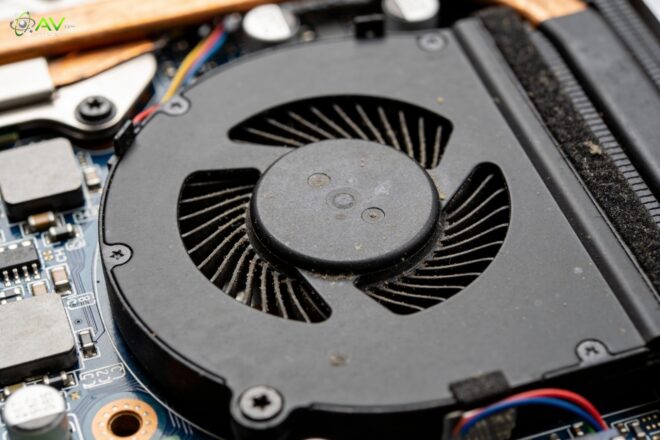
Cooling stops working effectively as a result of the fans finding it even more difficult to blow air. Even with light programs, this leads to continuous overheating. When used in a dusty environment, older MacBooks are more likely to collect dust.
5. Hardware Problems
Hardware failure can sometimes be the cause of overheating. Cooling fans may fail, move slowly, or produce strange sounds. The heat builds up quickly when these fans fail to operate. Another issue could be a broken internal temperature sensor or heat sink.
These components transfer heat away from the important areas. The MacBook is unable to cool down when they fail. Even when only the most basic programs are open, hardware problems typically result in rapid overheating. In that situation, expert repair is typically necessary.
6. Expert Tip
A MacBook that has a lot of RAM becomes overheated. The system is less affected when the memory is cleared of unnecessary files. This means that you may maintain your MacBook’s “memory” in order and reduce heat generation by restarting it on a regular basis, disconnecting some open apps, or reducing the number of tabs in your browser.
How to Stop Your MacBook from Overheating
If your MacBook keeps getting too hot, there are many simple and effective steps you can take. Let’s get into:
1. Close Heavy and Unused Apps
One of the quickest ways to lower the heat is to close apps that aren’t in use. Even when you are not using them, a lot of programs keep operating in the background. To discover which apps are consuming the most CPU, open Activity Monitor under Applications > Utilities.

Applications should be sorted by CPU usage, and those that are unnecessary should be closed. Performance is enhanced, and heat decreases quickly when CPU load is reduced.
2. Use Lighter Web Browsers
The use of browsers is one of the main reasons why MacBooks overheat. A lot of people frequently keep their browser open with multiple tabs throughout the day. Even when they are not in use, some of these tabs drain. Having too many tabs causes your MacBook to work harder, which produces heat.
Generally speaking, certain browsers use more electricity than others. Safari is the recommended browser. Since businesses like Apple have made sure they are in sync, it is typically best for a MacBook. Compared to the majority of browsers now in use, it uses less electricity.
3. Keep macOS and Apps Updated
Updates to your system can assist you in dealing with heating problems. Apple releases updates every month to help fix bugs and effectively manage power consumption. Updates from Apple address software-related heating problems in MacBooks.
Go to Settings > General > Software Update to see if there are any updates. Additionally, updating apps is crucial. Outdated apps may occasionally have defects or coding problems that result in excessive CPU consumption and heating problems.
4. Clean Your MacBook
It is a means of guaranteeing that the computer’s airflow is free of limitations. Dust builds up around the fans and the air vent over time. Similar to this, hot air cannot escape through blocked air vents, which causes the temperature to rise quickly.

Dust can occasionally be removed from the MacBook’s external air vent using a dry towel or a soft brush. Dust can also be removed from the fans and air vents by using pressurised air. But the procedure needs to be carried out with care. Furthermore, the computer’s internal components should never be cleaned with water.
5. Replace Old Thermal Paste
Thermal paste plays an important role in cooling. It helps transfer heat from the processor in order for the system to cool down properly. Thermal paste transfers heat from the processor to the heat sink. But the thermal paste slowly dries out and loses its ability to transfer heat effectively.
Higher temperatures are the result of heat remaining near the processor when using outdated thermal paste. Cooling can be greatly enhanced by replacing the outdated thermal paste. Older MacBooks will benefit greatly from this. The technique involves opening the device, which should only be done by experienced users or qualified experts to prevent harm of any kind.
6. Control Startup Apps
When your MacBook boots up, some apps start up within seconds. Many of those use CPU, memory, and power in the background while they are not actually required. The temperature rises as soon as your Mac boots up due to this increased activity.
System Settings > General > Login Items allows you to control which applications launch at startup. By removing unnecessary apps from this menu, you may reduce background activity, speed up system startup, and keep your MacBook cooler while in use.
7. Reset the SMC (Intel Macs Only)
Many of the key operations in your MacBook are managed by the SMC. These include power behavior, fan speed, temperature control, and battery charging. Your MacBook may not be able to control the heat properly if the SMC is failing. Fans may not spin quickly enough or may behave improperly if the SMC faults.
Even with less use, your MacBook may overheat. On Intel-based Macs, fan troubles, power problems, and overheating are typically resolved by resetting the SMC. Only Intel Macs require this step. Apple Silicon Macs do not require an SMC reset and handle these functions in a different way. It is safe to perform an SMC reset; no data will be lost.
8. Adjust Battery Settings
Charging your MacBook naturally creates heat. When the battery is charging, power flows into the system, which increases the temperature. Some battery features are designed to protect battery health, but may also cause extra warmth during long charging sessions.
You can adjust battery settings by going to System Settings > Battery. Turning on optimised charging or limiting background activity while charging can help reduce heat. It also helps to unplug the charger once the battery is full if you do not need it plugged in. Managing battery settings properly helps lower heat, protect battery health, and improve overall system performance.
9. Manage Graphics Usage
Dual graphics processing units are another feature of some MacBook Pros. The first graphics processing unit is quite strong and designed to handle demanding tasks like playing games or editing videos. The second one is designed for everyday use. In addition, the first graphics processing unit uses more power and produces more heat.
Your MacBook will quickly get heated if it stays on all the time. The operating system can be made to use the second graphics processor unit when it doesn’t need a lot of power by using the auto graphics switch. Additionally, it would keep your MacBook cool.
What Happens When a MacBook Overheats?
One of the first signs that your MacBook is overheating is that the fan is making a lot of noise. In order to cool down and remove the warm air, the fans will run more quickly. Other symptoms might appear if this overheating is not prevented. Your MacBook’s underside and keyboard could get very hot.
Additionally, some of your apps might freeze, crash, or run slowly. You might also see some visual problems. Your MacBook can simply shut down in serious situations. In fact, this is an important security measure that will prevent damage to your computer. Even if it protects your computer, too much overheating can still result in damage.
How to Check Your MacBook’s Temperature
There is no temperature information displayed by the macOS operating system. You must use reliable third-party software to keep an eye on the temperatures. This software can show you the temperature of your MacBook’s internal sensors, the CPU’s temperature, and the fan’s speed.
By keeping an eye on temperatures, you can keep an eye on how your MacBook performs while performing different tasks and identify instances of high temperatures early on so you can address the problem. During periods of high usage, including gaming, video, and charging, it is important.
How to Cool Down a MacBook Quickly
Here are some short techniques to help you cool down your MacBook as quickly as possible if you discover it to be extremely hot. First, close all applications that use a lot of power, such as games, video editors, and several browser sessions. They all use a lot of power, which causes your computer to heat up.
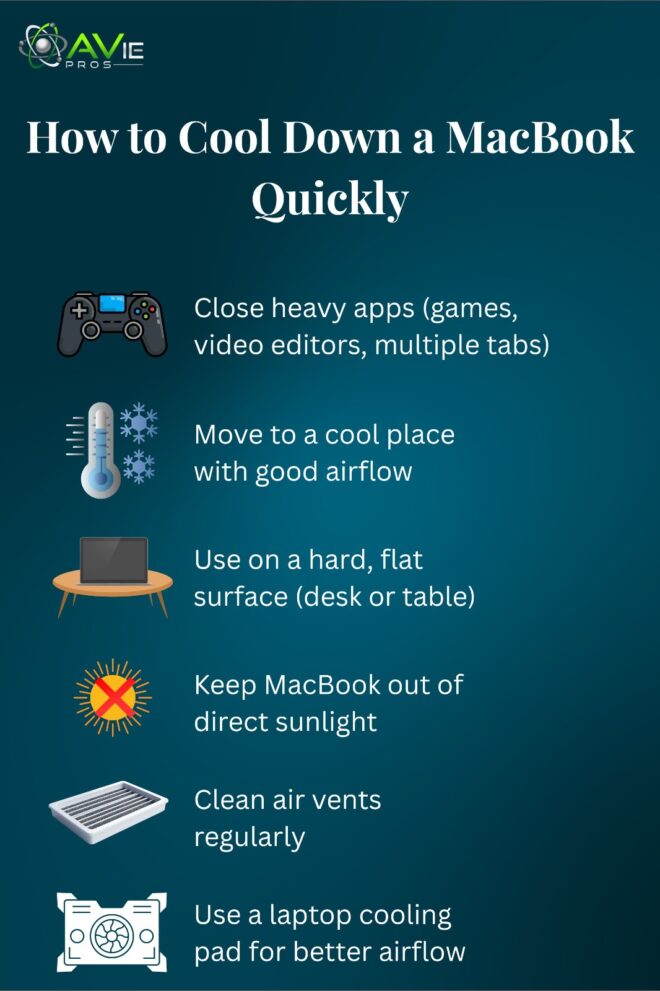
Transfer your MacBook to a cooler location with sufficient airflow. It makes cooling more challenging when used in a heated room. Always use a table, desk, or other hard, level surface to support your MacBook. Stay clear of soft objects like couches and beds because they collect warm air and block air vents.
Because direct sunlight significantly increases heat, keep your MacBook out of direct sunlight. Warm air can be released by regularly clearing the vents. A laptop cooling pad improves airflow and decreases the temperature when using it for extended periods of time, if overheating happens regularly.
Can Overheating Damage a MacBook?
Yes, overheating may result in serious damage. Internal parts like the battery, processor, and logic board are gradually harmed by high temperatures. Since heat reduces a battery’s capacity for keeping a charge, battery health often suffers the most.
While MacBooks are designed to shut down immediately for self-defence, frequent overheating, however, puts long-term strain on parts. As a result, this shortens your MacBook’s overall durability and may require some costly repairs later.
Can Sunlight Cause Overheating?
In direct sunlight, a MacBook can definitely overheat quite quickly. The aluminium body is heated by sunlight, which also raises the inside temperature. Never, ever leave your MacBook in a parked car, not even for a little period of time.
Cars’ interiors heat up quickly, which can harm internal parts. In order to prevent overheating, it’s also important to avoid using your MacBook in direct sunlight for long periods of time.
Is It Normal for a MacBook to Feel Hot?
When a laptop is used for challenging activities like gaming, video editing, and charging, it is common for it to get heated. This is due to the laptop producing more heat while operating at its maximum capacity. However, it is unusual for the laptop to be overheated, for the fans to run at maximum speed, or for it to shut down unexpectedly.
Gaming
Both the processing and graphics devices are severely loaded by games. They generate heat when operating at maximum speed. When sports are being played, some heat is to be expected. It is unacceptable to generate too much heat.
The processor is feeling better by lowering the graphics detail. Resources can be made available by shutting off all background programs. Heat control could be greatly helped by using a cooling pad or an uncomfortable surface.
Conclusion
Overuse, problems with software, improper cooling, dust, or physical issues are the most common causes of MacBook heating. The majority of problems may be fixed with simple methods.
Including managing startup items, cleaning air vents, updating software, and shutting down apps. You can therefore keep your MacBook cool, quick, and secure for a very long time by being aware of these possible problems.
FAQs
1. Why does my MacBook overheat even when idle?
This is usually caused by background apps, software bugs, or malware using system resources silently.
2. Can overheating reduce battery life?
Yes. Heat damages battery health and reduces lifespan over time.
3. Should I worry if my MacBook fans are loud?
Occasional loud fans are normal. Constant noise means overheating.
4. Is it safe to use a cooling pad?
Yes. Cooling pads improve airflow and reduce temperature.
5. When should I seek professional help?
If overheating happens quickly, shutdowns are frequent, or fans fail, professional help is recommended.