How to Fix PS5 DualSense Controller Drift – Step by Step Guide
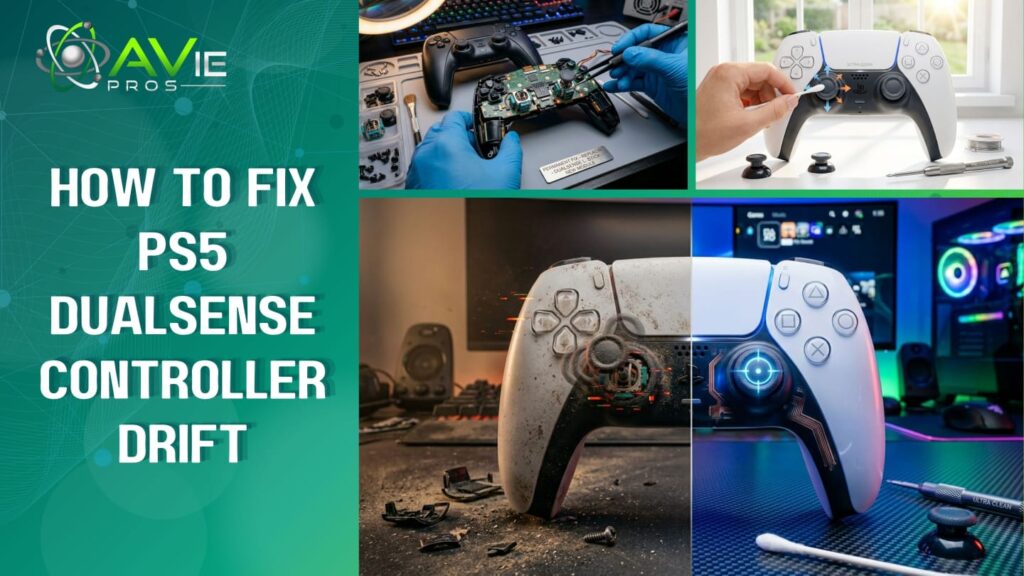
Are you searching for a quick fix for PS5 DualSense controller drift? There are several methods for fixing the PS5 DualSense controller, including cleaning around the sticks, resetting or rotating the sticks while clicking them into place. In this article, we will explain the reasons for the PS5 DualSense controller’s drift and methods to resolve it. Let’s explore: Understanding Stick Drift Stick drift is a common issue in controllers where the analogue stick sends a movement signal to the console. It can be possible even if you are not physically touching it. If the joystick returns to its neutral centre position and registers no input when released, it means that the controller is functioning properly. However, with stick drift, the controller automatically detects slight false movements. It happens due to internal inaccuracies. This results in poor in-game actions such as slow camera panning, character walking or spinning without input, or off-target aim drifting. Note: All these small but constant false inputs can badly impact your gameplay. It makes your control mobile frustrating, especially in competitive games where precision is important. Difficulty: Easy to Moderate Time Required: 10-30 minutes Risk Level: Low (cleaning) to Medium (opening controller) Common Causes Four major problems can cause stick drift in your PS5 controller. Let’s have a look at all possible reasons: Dust & debris inside the joystick Worn-out internal sensors (potentiometers) Software glitches (including when trying to fix PS5 controller drift on PC) Physical damage or moisture Step-By-Step Fixes In the guide below, all the fixes are specifically designed in a step-by-step approach. If your first method of fixing does not work, then proceed to other methods. Let’s get into: 1. Clean the Analog Sticks (Most Effective Method) What you need: Compressed air (preferred) Cotton swabs Isopropyl alcohol (70–90%) Steps: Turn your controller off. Push the joystick to one side. It could be any direction. The base of the stick will be visible. Spray compressed air into the base properly. Rotate the joystick in a circular motion while spraying compressed air. Take a cotton swab and dip it a little in alcohol. Using the same cotton swab, gently clean the base around all the sides of the stick. Let it sit for a couple of minutes to dry completely. The ideal time for letting it rest is 5 to 10 minutes. Tip: Repeat this process 2–3 times if drift persists. 2. Reset the Controller This method is very useful and simple to manage. It clears all the temporary glitches. This method takes only a few seconds and can easily fix your PS5 controller drift. Let’s understand how it works: Step: Start by turning off your PS5 completely. Flip the controller over with your hands. There’s a reset hole located on the side of the controller. Locate the small reset hole carefully. It is near the L2 button. Take a pin or paperclip, insert the pin, and click on the reset hole. Hold it for 5-10 seconds continuously. After that, connect the controller to the PS5 using a USB cable. Lastly, turn the console back on and recheck the controller. 3. Update Controller & Console Software Outdated software can cause problems like a stick drift or random movements. An update is essential to keep your controller and console error-free, especially when trying to fix PS5 controller drift on PC. Let’s dive into: Steps: The first step is to connect your PS5 using a USB cable. Open Settings > Accessories > Controllers Inside the controller’s menu, choose wireless controller device software. Look, if there is any notification available on the screen asking you to update it, then download & install it immediately. This process usually takes a few minutes to complete. If you don’t know how to check if an update is available, check the further steps. To update your PS5 system, open Settings > System > System Software > Check for Updates. If a new version is available, a notification will appear at the top of the screen. Click update, download the latest version, and install it. Benefit: Software updates help your system run smoothly. It also fixes bugs that cause hardware issues. 4. Recalibrate (Manual Method) The PS5 does not have a full in-built calibration tool. However, there is a possibility to test your controller to better understand the problem. This is helpful if you want to fix PS5 controller drift on PC as well. Steps: Open Settings > Accessories > Controllers. Open the Test Input Devices; this will show you how your analog sticks are responding. To deeply check the responding, simply move both sticks in a full circular motion. Watch the movement carefully on the screen. Condition 01: If the movement looks smooth and controlled, then your controller is absolutely fine. It’s a sign that the issue may be software-related. Condition 02: But if you see any sudden jumps, random movements, or the stick moving on its own, then there’s a possibility of a hardware problem. This test clearly defines what to do next. 5. Deep Cleaning (Advanced Method) If all the above basic methods do not work for you, then there is dirt and dust inside the controller. People don’t realize the importance of cleaning; it causes big problems. It’s one of the advanced methods known as open controller deep cleaning. What You Need: A small screwdriver Isopropyl alcohol Cotton swabs Cloth for cleaning Steps: First, remove the screws from the back of the controller carefully. The outer shell feels loose after removing all screws. Slowly open the outer shell. Be careful while doing this because there are small parts inside attached