
It’s true that PC gaming can be amazing, but not everyone enjoys a smooth gaming experience. In demanding games, even high-end PCs may lag, slow down, or freeze. It’s important to optimize your PC for gaming. By optimizing the game, you can improve its performance without having to upgrade your hardware. It can assist in boosting frame rates and reducing slowdowns by making your experience smoother.
Checking your hardware, updating drivers, modifying game settings, regulating background activities, and managing storage are all part of the process. Here’s how we are going to cover all the ways in simple language in this guide. You will understand how to maximize the performance of your PC games by the end. Let’s explore it:
Optimization Methods
There are a lot of methods, settings, and optimization for having smooth experience on PC to play games. Let’s get into:
1. Check Your Hardware
The majority of gaming optimization starts with understanding your hardware. There are limited and suggested requirements for every game. If your processor, graphics card, or RAM is too weak, a game will not run well. The CPU performs all calculations and logical operations, whereas RAM temporarily stores information to enable speedy access.
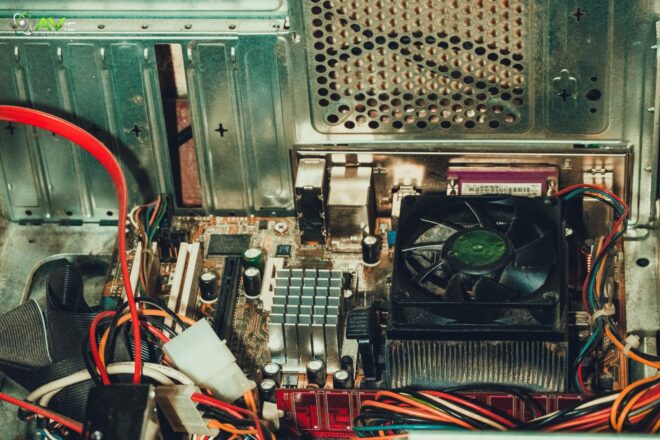
A graphics card is essential for smooth visuals since it renders images and effects. The type of storage is also important because SSDs load games more quickly than normal hard drives. Even small adjustments, such as increasing RAM or dusting your computer, can have an impact. Understanding your computer’s hardware limitations enables you to intelligently optimize game settings without overtaxing the system.
2. Update Drivers and Windows
First of all, for smooth gaming, it’s important to keep your system updated. Windows updates fix performance-impairing problems and stabilize your operating system. Because they instruct your GPU on how to handle games, graphics card drivers are much more important. NVIDIA, AMD, and Intel have provided upgrades that frequently feature enhancements for the latest and greatest games.
Using older drivers may result in reduced frame rates, delays, or crashes. Motherboard, network, and sound drivers are other drivers that could affect performance. Installing updates frequently helps guarantee that your system is working efficiently. This is one of the simplest ways to prevent performance problems and play games the way the creators intended.
3. Adjust Game Settings
Performance is greatly affected by game settings. How demanding a game is depends on its resolution, visual quality, shadows, textures, and effects. Lowering the resolution makes games run faster, but images can be less sharp. It is possible to enhance FPS by decreasing visual settings like as anti-aliasing, shadows, and particle effects without fully affecting the experience.
The majority of games have presets of some kind, including “Low,” “Medium,” and “High.” Most of the time, picking a medium balances visuals and performance. V-sync may decrease FPS, but can lessen screen tearing. Advanced settings include draw distance and post-processing that can be modified for smoother gaming. Experimenting with settings is important for finding what works best with your computer.
4. Close Background Programs
Most of the programs that operate in the background use up CPU, RAM, and disk resources. Even browsers, chat applications, and antivirus software can drag down the frame rates of a game. This is because removing useless programs frees up system resources for gaming. When you use Ctrl + Shift + Esc to enter Task Manager, you can see which apps use CPU and memory. End jobs that you do not require, but be careful not to close important Windows processes.
The programs and applications that are set up to launch alongside Windows are additional options that may lower performance. Your games will have more memory if fewer programs have been set up to launch. Keeping your system focused on gaming will greatly improve framerates and reduce delays, providing you with a smoother experience when gaming.
5. Use Game Mode and Optimization Software
To improve gaming performance, Windows comes with a built-in Game Mode. It reduces the amount of background work that is done and provides games with more system resources. Turning this on under Settings > Gaming > Game Mode is simple. Optimization software works along with this to further boost efficiency. Applications like Razer Cortex or MSI Afterburner will manage system resources, clear away temporary files, and monitor hardware.

Certain utilities allow for CPU or GPU overclocking, which increases performance but also produces more heat. Controlling the temperature becomes important in this situation. FPS counters and other performance indicators that can help in understanding system limitations are also included in these utilities. Using Game Mode and optimization tools in tandem will provide noticeable variations in your game experience.
6. Manage Storage and Disk Performance
Most players don’t realize how much storage affects gameplay performance. The loading process is slowed down and may even stutter when the drive is full. Your system will respond much more quickly if your main disk has free space. Temporary files, outdated downloads, and unneeded programs should all be routinely removed. For traditional hard drives, defragmentation arranges data better to make access faster.
Although SSDs don’t need to be separated, you should enable TRIM to guarantee speed. If you find that your main drive is full, you can consider installing games on another drive. Developing effective storage management is an important step toward optimization. Fast storage results in faster game loading, less stutter, and the ability for your PC to operate smoothly even in demanding processes.
7. Optimize Internet Connection
Online gaming depends greatly on the performance of your internet. Multiplayer experiences are destroyed by high ping and lag. Wired Ethernet is preferred over Wi-Fi, which may be unstable or much slower. Closing any apps that use the internet during gaming makes more bandwidth accessible. Stability might be further improved by firmware updates for your router. Some routers have QoS configurations that give gaming traffic priority.
Choosing a server closer to your location lowers latency. Monitoring network consumption during gameplay ensures nothing is taking bandwidth in the background. A stable and fast connection is important for playing competitive and online games. Improving your internet configuration can minimize lag and boost responsiveness greatly.
8. Control Temperature and Cooling
Performance is decreased by overheating, which slows down CPU and GPU operation and finally results in lag and stuttering. Dust and dirt block fans and vents, making the situation worse. Regularly cleaning your PC with compressed air improves ventilation. Having enough case fans and ensuring proper airflow can make your system run cool.
If you have a laptop, you can use cooling pads to help lower the temperature. Temperature monitoring software is available, such as HWMonitor or MSI Afterburner. Keeping hardware cool not only helps performance, but the component life expectancy also grows. An important but frequently missed part of game optimization is proper cooling.
9. Overclocking for Performance
Overclocking is a process that enables your CPU or GPU to operate at a speed higher than the manufacturer’s recommended level. Generally, it raises the FPS in demanding video games and minimizes lag. Software-based overclocking is available for most of the more recent CPUs and GPUs, including Ryzen Master and MSI Afterburner. Temperature monitoring is necessary since overclocking produces more heat.
Small steps are safer compared to extreme overclocking. Testing for stability will help avoid crashes from occurring in your system. Not everyone needs to overclock, people who have mid-range hardware can find this highly handy. One may get a notable improvement in performance without necessarily updating components if this is done carefully.
10. Optimize VRAM and Graphics Memory
The GPU uses VRAM to store graphics data and textures. Games begin to slow and stutter when the VRAM is full. It can be minimized by setting down texture quality, shadows, and draw distance. Many modern games have incredibly high-resolution textures that surpass what is possible on mid-range GPUs.
You can see which game settings need to be adjusted by using monitoring software such as MSI Afterburner. Some games can truly limit VRAM use in their settings. Stuttering and crashing can be avoided by limiting usage. With the majority of more recent games that have excellent graphics quality, this is even more important.
11. Update DirectX and Visual C++ Redistributables
A set of software tools called DirectX enables games to communicate with your GPU. Crashes, stuttering, and graphical issues can occur while using an older version. You will be compatible with more recent games if you update to the most recent version. Libraries called Visual C++ Redistributables are necessary for many games to function properly.
Your games might not load at all or run poorly without them or with highly out-of-date versions. It is relatively easy but important to keep these updated. Most games include redistributables in their installer, but doing so manually assures you get the newest fixes. One of the essential components of stable and smooth gaming is having the right system libraries.
12. Reduce In-Game Background Effects
Most recent games make use of background effects such as motion blur, depth of field, particle effects, and reflections. These seem great, but tend to be resource-intensive. In general, reducing or removing these effects boosts frames per second without necessarily degrading the game’s appearance. Reducing lighting and shadows, which are also demanding, enhances performance.
Many games offer the ability to adjust each of these graphic effects separately. Tweaking these settings tends to create a better balance between visuals and performance. A seamless experience can be achieved even with a little reduction in some effects. Reducing unnecessary background effects appears to be an easy technique to optimize demanding games operating on mid-range or older hardware.
13. Manage Game Mods Carefully
Mods have a chance to improve gameplay, but also lower performance. High-resolution texture packs, scripts, or graphical modifications increase GPU and CPU stress. Stuttering and crashes may result from installing too many mods. Always read mod requirements and compatibility notes. Use mod managers to keep everything organized and avoid problems.
Testing performance after applying mods is necessary to guarantee your PC can handle them. Sometimes, uninstalling or replacing hefty modifications drastically increases FPS. Mod optimization allows players to experience customized content without sacrificing performance. Managing mods responsibly is important for modded games to perform effectively.
14. Monitor Performance and Adjust
Tracking FPS and CPU, GPU, and RAM usage helps in identifying performance bottlenecks. Applications that create the possibility include MSI Afterburner, HWMonitor, or an FPS counter, most of which are integrated. You can change settings or shut down background apps if you notice that your frame rate decreases in specific regions. Monitoring reduces overheating and allows for the assessment of resource-heavy mods or programs.
Knowing your system’s limits helps with wiser optimizations. Games will function consistently if they are routinely monitored. Making minor observations keeps your system functioning properly. Being proactive about performance prevents unexpected stuttering or crashing and provides the greatest game experience.
15. Disable Unnecessary Windows Visual Effects
Another possibility is that Windows’ advanced visual effects cause games to lag. Although they use CPU and GPU resources, animations, transparency, shadows, and background effects are cool. Removing those can free up resources and enhance the frame rates of the games. Go to System Properties > Advanced > Performance Settings and select “Adjust for best performance.”
The majority of the animations and effects stop working, and your computer will look simpler without any additional decorations. Games will run more smoothly, especially on mid-range laptops and outdated PCs. Even slight increases in frame rate could be noticeable, but in intense games, every bit counts. Removing visual effects guarantees that your system puts performance ahead of graphics for a more seamless experience.
16. Optimize Power Settings
Windows power settings have an impact on how well your computer plays games. “Balanced” or “Power Saver” modes, which limit CPU and GPU speed to save energy, are used by many systems. Generally speaking, gaming demands the best possible performance from these parts. Your CPU and GPU can operate at maximum speed while in “High Performance” or “Ultimate Performance” mode.
With laptops, full functionality may need to be plugged in. Verify that the battery settings do not reduce performance. Optimizing the power settings helps ensure that your PC runs at its greatest performance during gaming. This little adjustment may noticeably improve FPS and remove lag, especially for laptops or energy-saving PCs.
17. Enable Hardware-Accelerated GPU Scheduling
Hardware-accelerated GPU Scheduling is a feature in Windows 10 and 11 that allows the GPU to handle memory management more effectively and minimizes CPU load. If your CPU is creating a bottleneck, it may even help enhance performance in some games. You may enable it in Settings > Display > Graphics Settings.
It frequently increases frame time consistency and decreases stuttering, but not all systems experience significant improvements. To maximize compatibility, this is normally combined with new GPU drivers. It is advised that the system and GPU be more modern for this function to be most useful. Hardware acceleration is one of the easiest changes that offers important gameplay advantages.
18. Reduce Background Internet Usage
Online games require the internet to be both speedy and stable. Speed is affected by even small background usage, which results in lag. Applications that reduce bandwidth include downloads, streaming, and cloud backups. Closing these applications before joining the game ensures that your connection concentrates totally on the game. Updates that need lots of networking should be stopped during play.

Certain routers provide bandwidth limitations to be configured for non-gaming apps. Ping is decreased, and sudden increases that interfere with gameplay are prevented by lowering the background internet usage. In competitive multiplayer games, this becomes important. Online games become more responsive, smooth, and entertaining when internet usage is optimized. Even simple modifications may create a major difference in your experience.
19. Use Game-Specific Optimizations
There are advanced optimization settings in some games. Performance settings, Vulkan API, and DirectX 12 are a few technologies that might improve FPS. Performance will typically be enhanced by updating game patches. The majority of games offer configuration files or console commands for adjusting settings that are not accessible through the user interface. Competitive games minimize visual clutter and turn off any unnecessary features, especially those that demand quick motions and reactions.
Sometimes you can find some secret performance tweaks by looking through your game’s instructions or websites. It’s nice to have all of these different optimizations on your computer, but each game requires a unique set of optimizations in order to operate at its best without interfering with the other games. When combined with normal PC optimization, this ensures that every game runs as smoothly as possible on your system.
Final Tips for Optimal Gaming
To clear the memory and reset processes, always restart your computer before playing a game. When playing games, try not to multitask. Clean the hardware periodically since dust builds up easily in this section. Use SSDs for quick loading times and keep your system and drivers up to date. Optimize game settings, balance the graphics with frames per second, and check temperatures.
Even minor adjustments, like shutting down background programs or selecting the right server, could have a big impact. Optimizing your PC is a constant process. You can make sure that games function smoothly and enjoyably by strictly following to these instructions. High-quality graphics, smooth gameplay, and an all-around improved gaming experience are all provided by a well-optimized PC.
Conclusion
It’s not difficult to set up your PC for gaming, but it does take time and effort. To achieve the best performance, check your hardware, update your drivers, change settings, manage storage, and regulate the temperature. This is further enhanced by features like Game Mode, hardware-accelerated GPU scheduling, and power settings. Reducing background apps, internet usage, and Windows visual effects can further boost efficiency.
Overclocking, VRAM management, and game-specific optimizations are examples of advanced adjustments. Smooth gameplay, quicker loading times, and an all-around improved experience are guaranteed by optimization. These procedures improve the performance of modern games on even older PCs. More enjoyment, less discomfort and just a better gaming experience are all results of a well-optimized system.
FAQs
1. Will optimizing my PC guarantee higher FPS in all games?
Optimization improves performance, but cannot make underpowered hardware run high-end games perfectly. It reduces lag and increases FPS, but results depend on your system.
2. Can I overclock my CPU or GPU safely?
Yes, but monitor temperatures and increase speeds gradually. Overclocking boosts performance but can cause instability or heat if done carelessly.
3. Is SSD necessary for game optimization?
Not mandatory, but SSDs reduce load times and stutter compared to HDDs. Games installed on SSDs feel smoother and load faster.
4. Do background apps really affect gaming performance?
Yes, apps like browsers, messengers, or cloud software consume CPU, RAM, and internet bandwidth. Closing them frees resources for better FPS.
5. Are game-specific optimizations important?
Absolutely. Each game has unique settings and tweaks. Optimizing individually ensures you get maximum performance without compromising graphics.