Apple laptops are renowned for their outstanding performance. Occasionally, they show small technological issues. You might notice that your Mac automatically adjusts the brightness of the screen, resets the speaker level, or boots slowly. All of these signs basically point to a small-scale need for your Mac to be refreshed.
Many of these minor problems can be fixed by resetting NVRAM, PRAM, or SMC. These are simple fixes to restore your Mac’s functionality. Although knowing these resets saves time and avoids frustration, the majority of Mac users are unaware of them. Let’s explore it:
What Are NVRAM, SMC, and PRAM?
A few small memory units on your Mac store important information that keeps your system functioning properly. The three main ones are SMC, PRAM, and NVRAM. Each one plays a part in controlling the behavior of your Mac. Knowing each one separately makes it simpler to decide when and why to reset them.
1. NVRAM (Non-Volatile Random Access Memory):
It is a small amount of memory that contains the starting disk, display resolution, time zone, and sound level. Sometimes your Mac itself asks you to boost the Mac to remove unknown errors. The word “non-volatile” refers to the fact that this data is stored in NVRAM until you modify or reset it. Even if your Mac is turned off or disconnected.
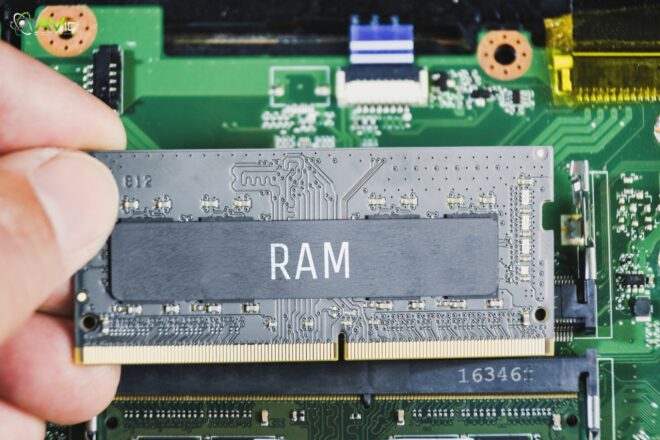
Minor problems, such as your Mac launching with the incorrect screen brightness or failing to keep the correct startup disk, may arise if the stored data becomes corrupted or outdated. This defective data is simply removed by resetting the NVRAM, allowing your Mac to properly rebuild it. Those who are using newer devices can also perform a reset NVRAM Mac M4 if they face any minor configuration errors.
2. PRAM (Parameter Random Access Memory):
PRAM is mainly used in older Macs and is comparable to NVRAM. This was the system that came before NVRAM, where settings were stored in basic settings. Additionally, PRAM provides some very basic settings, such as mouse speed, time zones, speaker volume, and display preferences. PRAM and NVRAM have nearly identical functions in the majority of modern Macs.
So, resetting is effective for both. A PRAM reset is the best course of action if your older Mac loses its boot-up settings or screen resolution. It restores appropriate performance and updates those minor but important recorded details. That’s why many people look up guides on how to reset PRAM before trying any advanced method.
3. SMC (System Management Controller):
On the other hand, the SMC controls your Mac’s hardware. Power-related features like the battery, fan speed, sleep mode, keyboard lighting, and power button responses are all managed by this chip. The SMC may be the problem if your Mac overheats, won’t turn on, or has trouble charging.
The SMC reset is similar to telling the system to learn correct hardware instructions and remove any incorrect ones. Most of the time, this can get your Mac back to normal without the need for expert repair. SMC controls your Mac’s physical behavior, while NVRAM and PRAM handle the settings. Many people perform a reset SMC when their battery or fan performance becomes unstable.
To put it simply, the SMC controls power and hardware operations, while NVRAM and PRAM store your Mac’s startup and software settings. Your Mac may not function properly if any of them become confused or corrupted. Your Mac’s performance and stability can be restored by performing a reset, which helps all these components restart smoothly.
Difference Between NVRAM and SMC Reset
There are a lot of people who feel confused about the NVRAM reset with the SMC reset. But these two need to be handled differently. Because NVRAM controls the startup, sound, and display settings. On the other hand, SMC handles the hardware, fans, power, and batteries. If you are back for forgotten Wi-Fi or screen brightness, then there is a need to reset NVRAM.
There are more conditions, like if your Mac overheats or does not charge, then the SMC also needs to be reset. Understanding this difference can surely help you resolve the right problem. You can even do both research in one session if needed. They both complement each other and bring your Mac back to its best condition. It is also helpful to make your Mac free from technical risks.
NVRAM or PRAM Reset (Detailed Guide)
In the instructions below, we’ll cover the steps of why you should reset, what the signs are that it needs to be reset, and how to reset. Let’s get into:
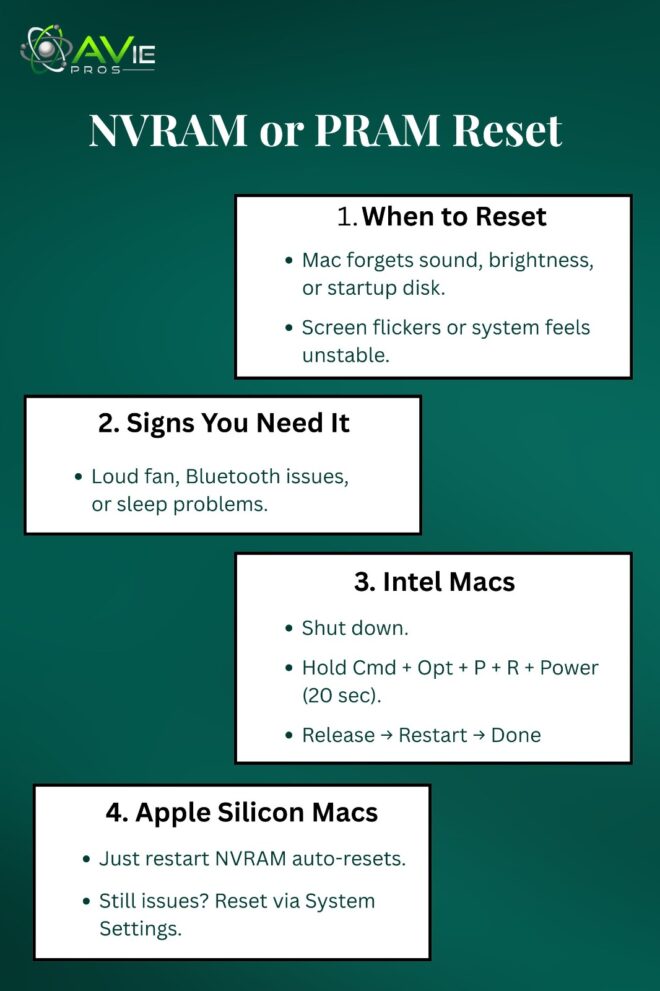
1. When Should You Reset NVRAM or PRAM?
When your Mac begins to behave strangely, you should consider resetting NVRAM or PRAM. Maybe your volume level is reset every time you reboot, or the screen is still too dark even after you change the brightness. Occasionally, the Mac does not start up from the correct drive because the startup disk selection is lost.
All of these could be signs of corrupted data in the PRAM or NVRAM of your Mac. The good news is that you can quickly and safely reset them. It makes your Mac greatly cleaner and more stable by cleaning little parts of memory that are in charge of how it starts up and shows its image, rather than erasing your primary files or apps.
2. Signs Your Mac Needs a Reset
Even when performing low-intensity tasks, every Mac provides small signals before something goes wrong, such as a fan running loudly or the battery not being fully charged. The computer occasionally has trouble falling asleep or waking up. Common signs that either SMC or NVRAM needs to be reset include flickering displays.
Unable to connect Bluetooth devices or an unusable keyboard backlight. It would be resolved with an easy reset rather than reinstalling the entire system or requesting assistance. It doesn’t remove your files or change any of your primary macOS settings, and it only takes a few minutes.
3. How to Reset NVRAM or PRAM on an Intel Mac?
If you have an older Intel-based Mac, resetting NVRAM or PRAM is not too difficult. You begin by shutting down your Mac entirely. Next, hold down the Command, Option, P, and R keys together with your fingers on the power button. For around 20 seconds, hold them. Your Mac reboots with its memory settings reset when you let off of the keys.
The default settings for the sound or display may be restored. In other words, it has been reset. After a reboot, you can adjust your preferences once more in System Settings. New data will now be accurately stored on your Mac, free of previous mistakes. These are the exact steps if you’re wondering How to Reset NVRAM on an Intel-based Mac.
4. How to Reset NVRAM or PRAM on Apple Silicon Macs?
Apple Silicon chips, which manage NVRAM memory in a slightly different way, are used in Apple’s new M1, M2, and M3 Macs. When booting up, they automatically test and reset NVRAM as needed. To achieve this, you don’t have to hit any keys. Simply turn your Mac off and back on if it’s acting strangely.
Memory problems are automatically detected and resolved by the system. You can manually reset all settings from System Preferences, though, if you continue to have problems like incorrect sound output or display issues. Apple Silicon simply aims to improve the process’s intelligence compared to Intel versions, which required multiple resets.
SMC Reset (Detailed Guide)
Let’s understand the SMC reset process that can bring a new life to your Mac. Let’s have a look at the step-by-step process:
1. Why Resetting SMC Matters for Mac
Many of the physical components of your Mac, which you most likely don’t pay much attention to daily, are managed by SMC. It manages the LED lighting, sleep features, battery charging, and cooling fan. Your Mac may begin to overheat, or its fan may run excessively quickly if SMC data is mixed.
Additionally, you can have charging issues or a non-responsive power button. These features are refreshed when the SMC is reset. It’s similar to giving your hardware system a quick restart. It assists your Mac in returning to normal without requiring complicated technical procedures or service repairs.
2. How to Reset SMC on Intel-Based Macs?
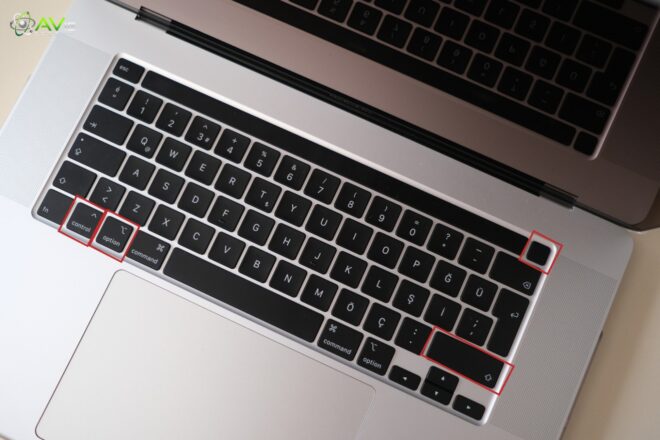
SMC reset depends on the type of Mac you have. For MacBooks with a non-removable battery, you need to shut down the Mac first. Now press and hold the Shift, Control, and Option keys with the power button. Just hold all the buttons for about 10 seconds. Now release all the keys and after a few seconds, turn on your Mac again.

If you have a desktop like an iMac or Mac Mini, then unplug the power cord for 15 seconds. After 15 seconds, plug it back in. Now you need to wait for a few more seconds before it turns on. Once you restart, you will notice that the performance and the hardware errors are better. This is how you reset PRAM and other hardware-related components indirectly.
3. How to Reset SMC on Apple Silicon Macs?
Let’s talk about Apple Silicon Mac, which is an older Intel model. They don’t have the same SMC design as other models have. Their system controllers are built into the main chips. It means that you don’t need to put in effort or perform special reset steps. When you reach out, your Mac will completely power off in a minute. It will automatically refresh the SMC functions.
It is like a big improvement because it reduces human errors. It will also make the maintenance easier. So if you notice your fan or power system behaving oddly, then try restarting your Mac. The single restart can then refresh everything automatically. It’s useful because you don’t need special key combinations.
Does Resetting Delete Personal Data?
A common fear among users is does the reset option erases data from SMC or NVRAM? The clear answer is no. The reset only affects low-level system memory or resets your software and hardware data. Whether you are concerned about your documents, pictures, and apps, all your personal data will be saved. The reset only removes old and temporary configurations that can cause problems in your Mac.
If you are looking to start up your disk or looking to set the display brightness, the reset option can resolve it all. It’s a completely safe and reversible process. That’s why professionals also suggest performing the reset method before moving to advanced repair steps.
How Many Times Reset Required?
People are also concerned about knowing when they need to reset NVRAM or PRAM. According to my advice, you only need to reset when you notice any unusual system behavior. The reset won’t harm your device even if you overuse it. It’s specifically designed to provide benefits for your device. Normally, you need to do it once or twice a month.
On the other hand, you can perform it when an issue appears. A lot of users restart their Macs when a big software update comes. Others do it after battery or power changes. The best rule is to only reset when your Mac starts showing small glitches like wrong volume levels or power misbehavior. Doing it occasionally keeps your system optimized without unnecessary resets.
What to Do If the Reset Does Not Work?
Sometimes, even after resetting NVRAM or SMC, your problem might stay. Don’t worry. This just means the issue lies deeper in macOS or hardware. Try restarting again, updating macOS to the latest version, or running Apple Diagnostics. If the issue continues, contact Apple Support or visit a service center.
The good thing is that resetting does not cause damage, so you can safely try it more than once. If your Mac is still under warranty, Apple technicians can inspect it and perform advanced resets if needed. It’s always good to get expert advice if the problem repeats.
How to Keep Your Mac Healthy After a Reset?
Once you reset, your Mac will start running better again. It will keep it simple and long-life. Once you shut down your Mac properly then avoid overheating and try to install updated software. Simply make sure to store your temporary files easily in your device because Mac has enough free space to store data.
Avoid using so many startup programs because they can slow down the performance. A clean and organized system can be achieved to maintain its speed. Resetting NVRAM and SMC adds another layer of my maintenance and security. No doubt it is just a small habit, but it can prevent you from many future issues. Resetting shows your Mac can run smoothly for years without slowing down your data or causing errors.
Benefits of Resetting Macs
Resetting your Mac regularly helps maintain its overall performance. Small errors may collect in short-term memory over time. Your Mac will have more room to store data effectively if you clear them away with resets. It’s similar to cleaning your table before starting a task.
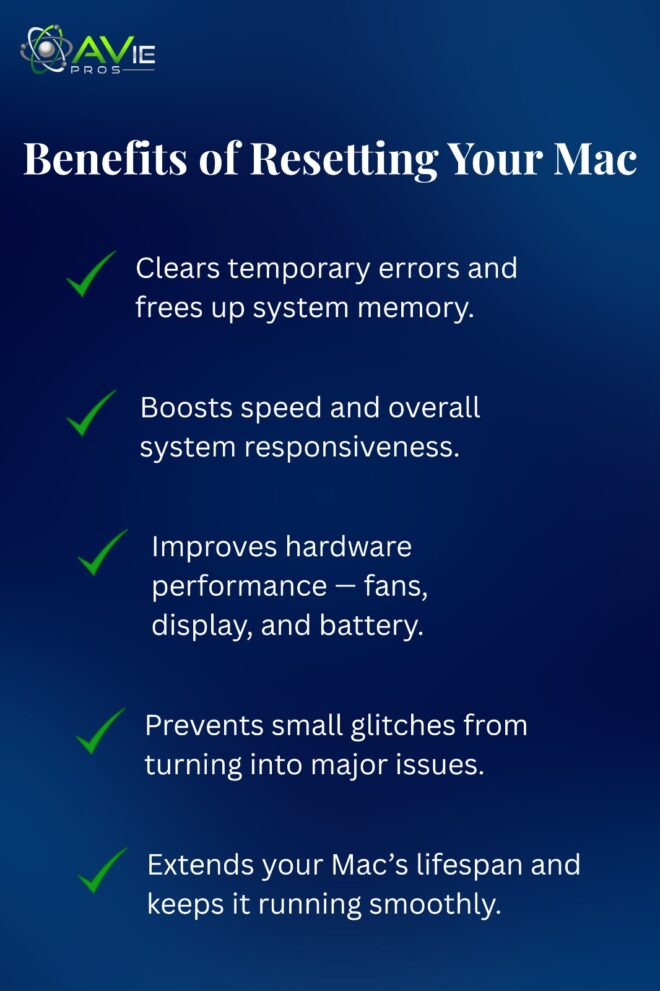
Hardware, like as fanatics, displays, and batteries, performs better, and the system becomes more responsive. Resets may be extra like refreshers, but many people think of them as repairs. They keep minor problems from becoming major device failures. By doing them when needed, you can extend the life of your Mac and keep it operating at its best.
What Common Issues Does the Reset Option Resolve?
Resetting NVRAM or SMC solves a lot of everyday issues. It includes problems like the top working Bluetooth disconnecting or the Mac not waking properly. All your errors can be fixed by just resetting. It also fixes charging errors or the strange screen color problem. One more thing that I want to clear up is that a reset does not harm your system at all. It’s simply clear that stored errors or internal logic confusions.
For example, if your battery percentage is wrong or your Mac startup is slow, then a reset can make a big difference. Most of the users resolve their Mac problems through this stable method. No doubt this is a life-saving hack for Mac users.
Wrapping Up
Resetting NVRAM, SMC, and PRAM on your Mac is one of the simplest ways that resolve your everyday tech problems quickly. The best part is you don’t need tools, software, or expert suggestions. You are definitely capable of doing it at home within a few minutes. One more clarification is that it’s a totally safe and reliable method. It doesn’t remove your personal data or your confidential information.
It only erases the configuration that causes glitches in your Mac. It also supports all previous versions, whether it’s Intel or Apple silicon. You can reset both with the help of holding the keys. It is a smart way that can assist you in maintaining the performance, fixing errors, and keeping the internet connection stable. This method is the best way to rely on your Mac for a long time.
FAQs
What happens after resetting NVRAM or SMC?
Your Mac will run smoothly and provide you with an effortless experience. Some settings that are easy to fix through a reset include sound, brightness, default settings, etc.
Will resetting delete my files?
No, it does not delete files, apps, or documents. It only clears small system data related to startup and hardware behavior.
How do I know if the reset worked?
If your problem is gone or your Mac feels faster and cooler, the reset worked successfully.
Can I reset on new M1 or M2 Macs?
Yes, but the process is automatic. Restarting your device refreshes NVRAM and SMC automatically.
Is it safe to reset often?
Yes, it’s safe, but not needed frequently. Do it only when your Mac behaves oddly or after big updates.