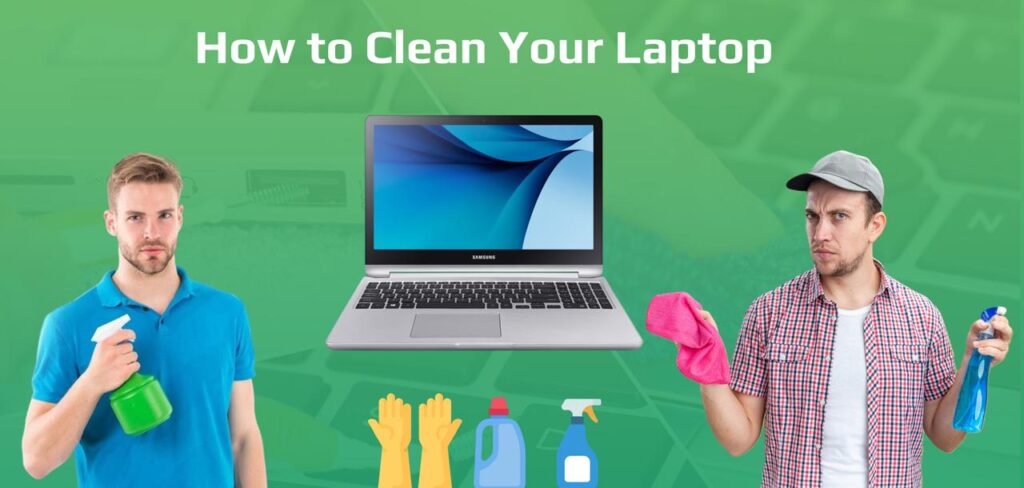
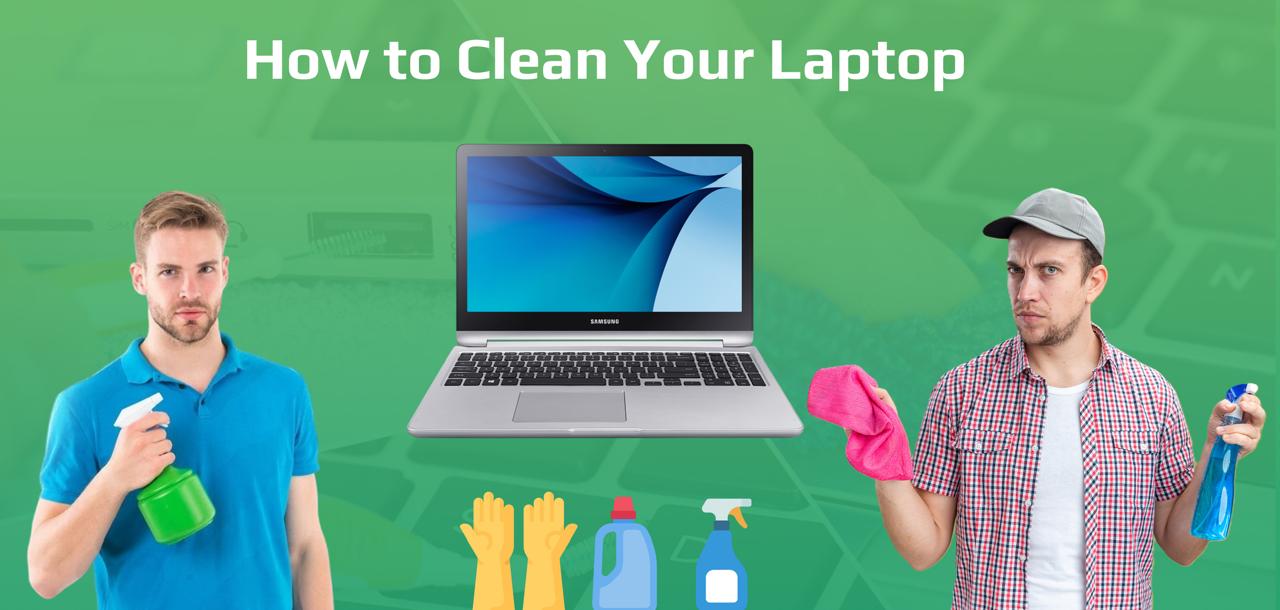
Keeping a laptop clean is important for maintaining its durability and functionality. Regular cleaning helps avoid hardware damage and overheating while also maintaining your device’s perfect appearance. We’ll show you how to clean laptop from the inside out in this complete guide, guaranteeing that it will continue to function properly for many years to come. Let’s explore it:
Why is Laptop Cleaning Important?
Cleaning plays an important role in your experience. Let me give you an example, it’s not compulsory that you must clean the technical devices only. Whenever you buy something from the Bazaar, maybe it’s made of wood, iron, or other metal, you take care of that particular thing and clean it daily.
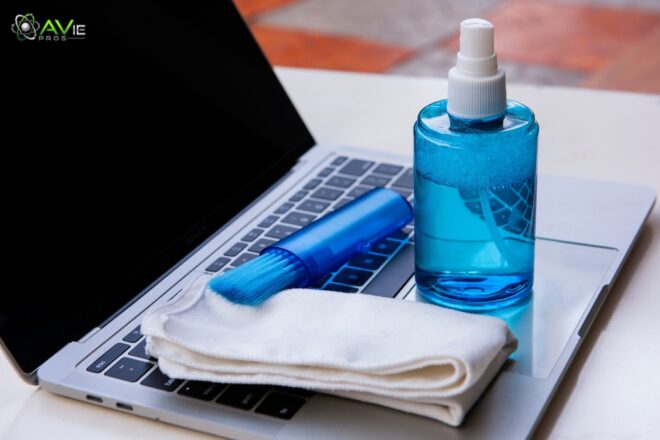
That’s why all the dust and dirt are cleaned, and your purchase looks new. Like that laptop has a lot of wires, a battery system, and connections in it. A fan is also attached to your laptop that can pull the dust. So many plug-in holes are designed on the sides of your laptop, and they can easily get dusty. So you need to clean your laptop once a week. It’s not compulsory to clean it at a perfect time; you can do it whenever you feel free.
The best tip is, if you are going to clean the keyboard and small holes where you can’t put the cloth then you can use cotton stick or brush bristles to wipe off the dust. It will maintain the performance better and better. It also helps your laptop to boost in fast working. Even after so many years you will be capable to use the same laptop with good condition.
How to Clean my Laptop to make it Faster?
The first step in how to clean my laptop to make it faster is to remove unnecessary files and programs. Empty the recycle bin and tidy up your PC. Get rid of unnecessary files by using a disk cleanup tool. To refresh your memory, restart your computer frequently. Remove any programs you don’t want as well. Keep your laptop clean by lightly cleaning the keyboard and vents. Lastly, to increase speed and performance, make sure your machine updates are installed.
How to Clean Your Laptop Externally
Cleaning the Display
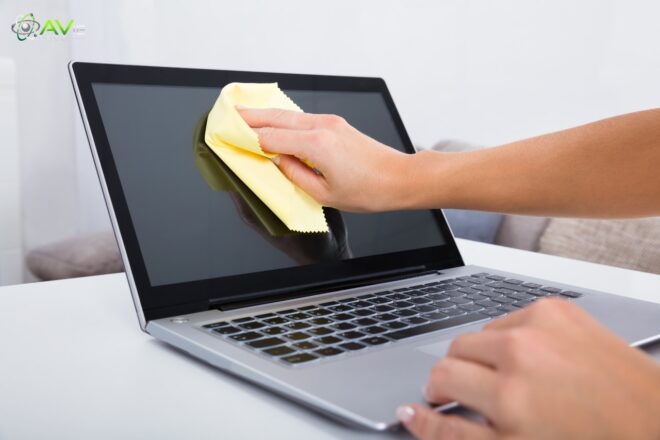
One of the most valuable parts of your laptop is the screen, which needs to be cleaned carefully to prevent damage. External cleaning makes your laptop look brand new, and it enhances the overall presence. Let’s look for the steps and things that we’ll need how to clean laptop screen:
What you’ll need:
- Microfiber cloth
- Distilled water or screen cleaning solution
Steps:
- Turn off and disconnect your laptop.
- To get rid of dust, gently wipe the screen using a dry microfiber cloth.
- Use pure water or a screen cleaning solution to lightly wet the cloth to remove resistant marks.
- Use a circular motion to wipe the screen, being cautious not to use too much pressure.
- To get rid of extra moisture, use a dry area of the towel.
Tip: Liquid should never be sprayed directly onto the screen since it could leak into the internal parts.
Cleaning the Keyboard
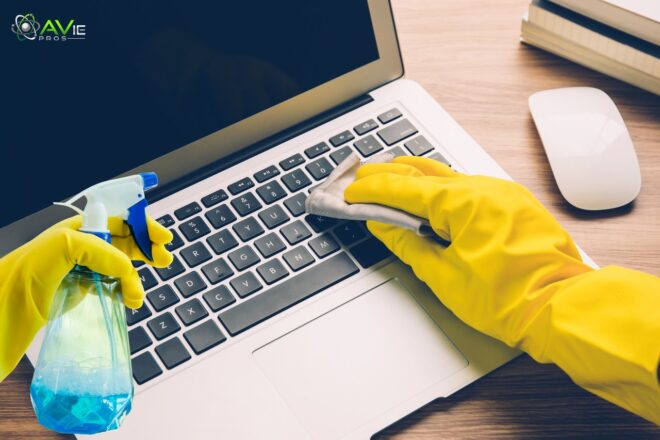
Keyboards need to be cleaned frequently because they can collect dust, crumbs, and oils from your fingers. Sometimes, you face the issue of buttons not working. It’s not about all the buttons, but a few stops pressing, it could be due to dust layers inside the system that block the process. Let’s get into how to clean laptop keyboard:
What you’ll need:
- Compressed Air Can
- Microfiber Cloth
- Isopropyl Alcohol
Steps:
- To clean it, the first thing you need to keep in mind is, unplug your laptop. It will protect you from electrical mishaps.
- Next, hold your device at a 75-degree angle, and try to blow out the compressed air in it.
- Now, take a cloth and use alcohol. Kindly ensure to use only a damp cloth.
- Take alcohol and wipe the dust carefully off your laptop. Keep focusing while wiping off the key and its surroundings.
- After that, use a dry cloth again to remove the alcohol residue and moisture or wet areas. That’s all, you’re finally out of it.
Tips: Use a specialist keyboard cleaning gel for a more thorough cleaning.
Cleaning the Laptop Body
With frequent use, the outside of your laptop may get greasy and dirty. The body is a part that country went all over the entire area of your laptop from damage. Always keep a check on it to avoid ignoring it. Let’s go ahead:
What you’ll need:
- A microfiber cloth
- Wipes for laptops or a mild soap solution
Steps:
- Make sure your laptop is unplugged and turned off.
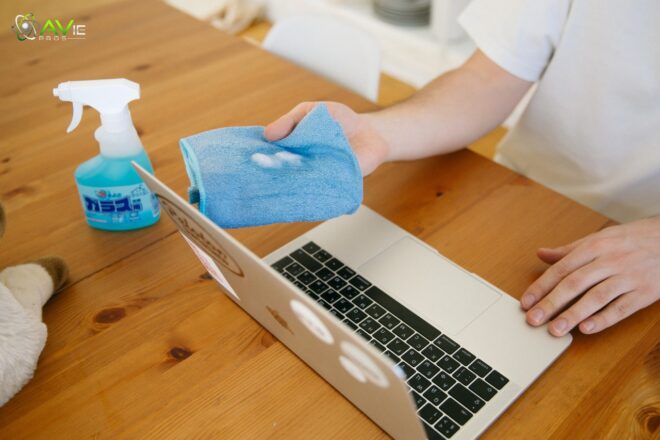
- Use laptop cleaning wipes or lightly moisten a microfiber cloth with a mild soap solution.
- Wipe the outside of the laptop, including the touchpad and palm rest, gently.
- Pay close attention to places that are touched a lot.
- To get rid of extra moisture, use a dry area of the towel.
How to Clean Your Laptop Internally
Cleaning the Laptop Fan and Vents
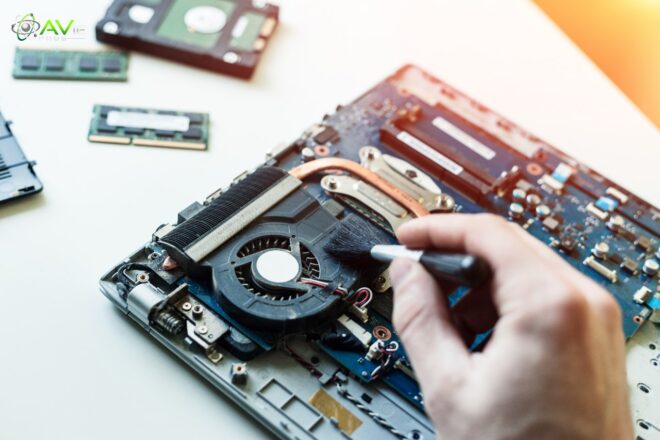
For proper ventilation and to avoid overheating, a clean fan and clear vents are necessary. The ventilation system is quite important for your laptop because it maintains the heat. It provides cooling to your computer so it does not get overheated. Let’s clean it together:
What you’ll need:
- Compressed Air Can
- A Screwdriver
Steps:
- Turn off and disconnect your laptop.
- Find the laptop’s air vents, which are often located on the sides or bottom.
- To remove dust from the vents, use brief compressed air bursts.
- Use a soft brush or compressed air to gently clean the fan blades, if possible.
Tip: Before trying to open your laptop, always refer to the manual. If a certain model is opened, the warranty may be lost.
Cleaning Your Hard Drive
The performance of your laptop can be enhanced with routine hard drive repair. Hardware cleaning is very crucial if you are unaware of its cleaning process. You can surely ask for others to help you. Let’s crack the method:
Steps:
- To see how much disk space is available, open “This PC” or “My Computer.”
- To get rid of unnecessary data and temporary files, use the built-in disk cleanup program.
- For HDDs, think about using disk defragmentation tools (not required for SSDs).
- To make space, remove any programs that aren’t being used.
Tip: Make regular backups of your most important files before beginning any important cleanup.
Conclusion
The cleaning is the most important part of our laptop journey, and we have covered specific guidelines and details about how to clean your laptop above. The procedures are outlined in steps to make them easy to understand. If you don’t clean your laptop, it will be damaged day by day, and one day it will stop working.
If you want to ensure the working of your laptop in the long run, then always keep a check on its cleaning. Read the instructions carefully and follow the steps to get impactful results. I do cleaning of my laptop every weekend, hope it will be worth it for you too.
FAQs
Is everyday cleaning necessary for a laptop?
No, it’s not, but if you regularly choose to clean your laptop, then I can guarantee you that giving never causes damage issues.
Can we use water to clean the laptop?
No, water is not the solution for your technical devices because it can damage the system, and your laptop will be destroyed.
Is the cleaning method the same for every laptop?
Yes, the above method will definitely go with all the technical devices. No matter what kind of laptop you were currently using, the cleaning procedure remains the same.
Can we open the laptop easily?
It is possible to open your laptop easily. You can follow any video from YouTube to open your laptop and clean all the corners for better results.