Two of the most popular media interfaces for sending audio and video signals to your screen are HDMI and DisplayPort. You’ll see that the majority of multimedia equipment, such as TVs and Blu-ray players, only have HDMI inputs when comparing HDMI vs DisplayPort.
Since most computers and monitors offer both inputs, the question of which one to use with your monitor arises. To assist you in making that choice. Let’s explore it:
What is DisplayPort?
Over the past ten years, DisplayPort has become widely used, particularly in consumer goods like expensive desktop monitors and graphics cards. This connector has an L-shaped header. DisplayPort is an important hardware standard with several connection and cable technology options, even though it does not currently have the same popularity as HDMI, as seen in HDMI vs DisplayPort cable comparisons.
What is HDMI?
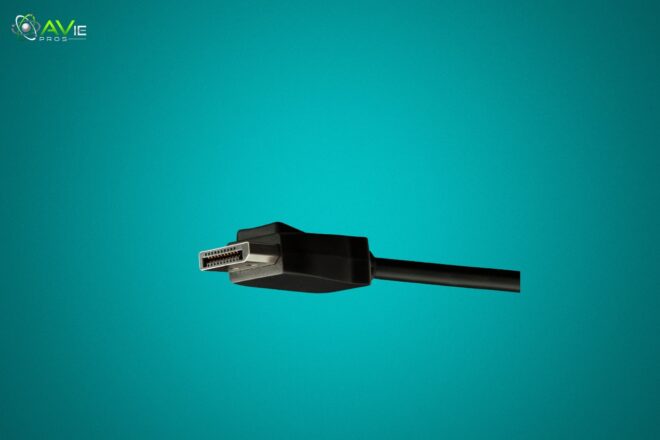
A data transmission standard called HDMI, or high-definition multimedia interface, links an output device, such as a television, projector, desktop monitor, laptop, or speaker, to a data source, like a CPU or set-top box. Electronics makers initially developed HDMI in order to establish a common standard for connecting devices, a key factor in the HDMI vs DisplayPort which is better debate.
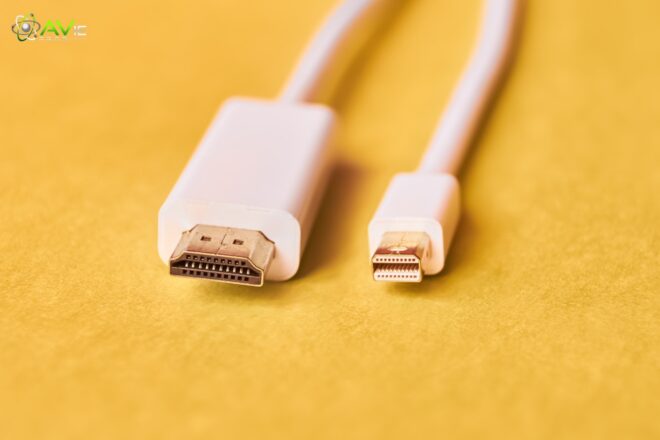
HDMI vs DisplayPort Difference
Let’s explore some of the differences between DisplayPort and HDMI, two media interfaces.
1. Physical Differences
Physically, DisplayPort and HDMI connectors are extremely similar. DisplayPort has 20 connections, while HDMI uses a 19-pin cable. While it isn’t a feature of the DisplayPort standard, the majority of DisplayPort connectors have a physical latch that keeps them from being accidentally unplugged. However, latches are a rare feature in HDMI connectors.
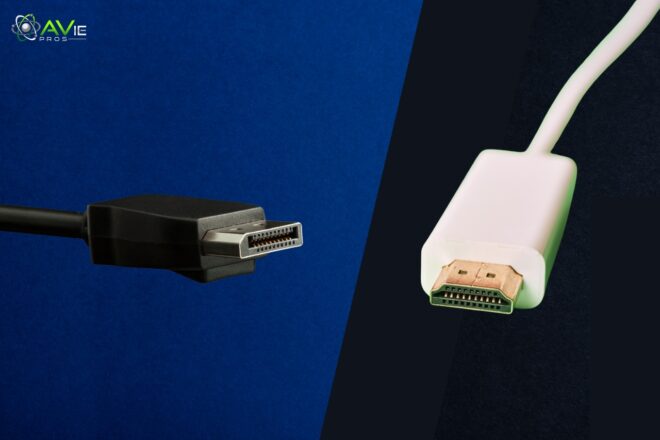
There are Mini HDMI, Micro HDMI, and Mini DisplayPort connectors in addition to the normal HDMI and DisplayPort connector types found on the most popular inputs and cords. With their smaller size, they have the same bandwidth and support for media formats. However, only a small number of displays have these connections, as noted in mini HDMI vs DisplayPort discussions.
2. Maximum Cable Length
While officially certified HDMI cables do not have a maximum cable length, longer cables are more likely to cause problems, such as dropped signals. Therefore, a cable must function properly at whatever length is accessible to be certified by HDMI. Since many HDMI cables aren’t officially certified.
It can be simple for manufacturers to create longer cables and make claims about their functionality. However, purchasing one of these carries the chance that it won’t work. Long DisplayPort cables cause the same problems. The majority of cables, especially those that offer higher bandwidth, are shorter than the 10 feet that DisplayPort has set as the suggested maximum length.
| HDMI | DisplayPort |
|---|---|
| No official maximum length | Recommended maximum length is 10 feet (3 m) |
| Suggested up to around 40-50 feet (13-15 m) | Many cables are short for optimal performance |
| Optimal performance at 6 feet (2 m) or less |
3. Versions and Bandwidth
Over the years, multiple versions of DisplayPort and HDMI have been released, each with different supported formats and bandwidth restrictions. For example, HDMI 2.0 can also be referred to as HDMI 2.0a because both DisplayPort and HDMI have experienced minor changes since their original launches. Older versions, such as DisplayPort 1.0/1.1 and HDMI 1.0 through 1.4, are no longer frequently found on monitors, as highlighted in the HDMI vs DisplayPort chart analyses.
Not all monitors support the full bandwidth of the version they offer. For example, there are DisplayPort 2.1 displays that support UHBR10 with 40 Gbps bandwidth and HDMI 2.1 monitors with 24 Gbps bandwidth. Although they aren’t using the full bandwidth that the version provides, these monitors are nonetheless technically HDMI and DisplayPort 2.1.
| Type | HDMI | DisplayPort | ||||
|---|---|---|---|---|---|---|
| Version (Alternative Names) | 2.0 (2.0a, 2.0b) | 2.1 (2.1a, 2.1b) | 2.2 | DP 1.2 (1.2a) | DP 1.4 (1.4a) | DP 2.1 (2.0, 2.1a) |
| Release Year | 2013 | 2017 | 2025 | 2010 | 2016 | 2019 |
| Max Bandwidth | 18Gbps | 48Gbps | 96Gbps | 21.6Gbps | 32.4Gbps | 80Gbps |
| Compression | No | Yes | Yes | No | Yes | Yes |
| HDR | Yes | Yes | Yes | Yes | Yes | Yes |
4. Supported Signals
Since it’s limited to the lowest common denominator, the highest resolution and refresh rate you can get will vary depending on the particular versions of your source and display. This means that while you can have a monitor with HDMI 2.1, your signal will only be able to use HDMI 2.0 bandwidth if your graphics card only supports that bandwidth.
On the other hand, the bandwidth is still restricted to HDMI 2.0 if you’re using an HDMI 2.0 display with an HDMI 2.1 source. In basic terms, the maximum resolution and refresh rate are determined by the minimum bandwidth that your source and display can provide. The maximum refresh rate for standard resolutions using uncompressed 8-bit and 10-bit signals with Chroma 4:4:4 is shown below.
| Resolution | Color Depth | HDMI 2.0 | HDMI 2.1 | HDMI 2.2 | DP 1.2 | DP 1.4 | DP 2.1 |
|---|---|---|---|---|---|---|---|
| 1920×1080 | 8-bit | 246Hz | 589Hz | 1178Hz | 289Hz | 406Hz | 885Hz |
| 10-bit | 202Hz | 499Hz | 998Hz | 238Hz | 338Hz | 771Hz | |
| 2560×1440 | 8-bit | 147Hz | 379Hz | 758Hz | 174Hz | 251Hz | 610Hz |
| 10-bit | 119Hz | 314Hz | 628Hz | 142Hz | 206Hz | 517Hz | |
| 3440×1440 | 8-bit | 112Hz | 297Hz | 594Hz | 133Hz | 194Hz | 492Hz |
| 10-bit | 91Hz | 245Hz | 490Hz | 108Hz | 158Hz | 412Hz | |
| 3840×2160 | 8-bit | 69Hz | 188Hz | 376Hz | 82Hz | 120Hz | 324Hz |
| 10-bit | 55Hz | 153Hz | 306Hz | 66Hz | 97Hz | 267Hz |
Key Features and Differences
You can choose which interface to use based on the features you wish to use, as each interface provides a few capabilities. A few examples are shown below:
Multi-Stream Transport (MST)
Multi-Stream Transport (MST), which was first introduced with DisplayPort 1.2, enables you to connect many displays in a chain from a single DisplayPort connection on your computer. Daisy chaining is another name for this technique, which works with an external hub or a compatible monitor with a DisplayPort output, a feature explored in HDMI vs DisplayPort 1.2.
According to theory, this technique enables you to operate up to 63 different screens on a single port, although the overall bandwidth cannot exceed the port’s maximum bandwidth. While DisplayPort to HDMI hubs can produce comparable outcomes, HDMI does not support MST natively. The source device must still have a DisplayPort connection for this to work.
Variable Refresh Rate (VRR)
The majority of modern graphics cards and monitors use Variable Refresh Rate (VRR), which is compatible with HDMI and DisplayPort, and reduces screen tearing. The main difference between these two connections is that not all monitors support NVIDIA’s G-SYNC technology over HDMI.
G-SYNC over HDMI monitors are either native G-SYNC monitors with NVIDIA’s chip included, or they enable HDMI Forum VRR, a feature of HDMI 2.1. Unless you are certain that your display supports VRR over HDMI, it is advisable to use a DisplayPort connection if you have an NVIDIA graphics card and wish to use VRR.
USB-C DisplayPort Alt Mode
There are other ways to get audio and visual signals from your computer besides HDMI and DisplayPort. Using DisplayPort Alt Mode instead of USB-C is the most popular solution. Being a form of DisplayPort media interface, as the name suggests, DisplayPort Alt Mode shares many of the same features and bandwidth, as seen in HDMI vs DisplayPort 1.4 comparisons.
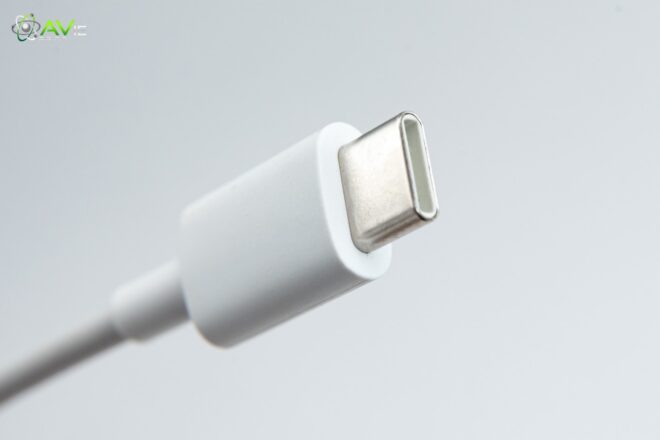
DisplayPort Alt Mode allows devices with USB-C connections, like as phones, laptops, and even the Nintendo Switch, to deliver a video signal over USB-C to a suitable monitor. Compared to USB-C, DisplayPort Alt Mode has a few benefits. You may use a single cable to charge your laptop while using it because many monitors offer USB-C power.
EARC/ARC
eARC/ARC support is one of the most widely used features of HDMI that DisplayPort lacks. This enables you to pass popular audio formats from an external source to a sound bar that is compatible with HDMI. For example, you can use a sound bar to play high-quality audio signals.
Just like Dolby Atmos or DTS: X while connecting your Blu-ray to the screen. It’s better to connect your sound bar straight to your multimedia device if you have a monitor, because this capability is rare on monitors and more common on TVs.
Graphics Cards
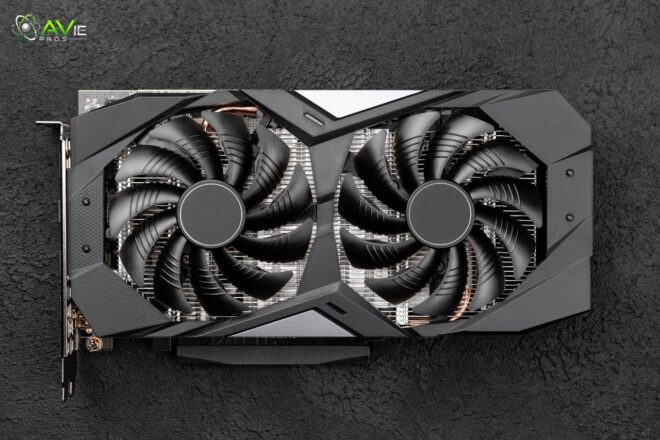
To fully benefit from each other, your device and monitor must support the same maximum bandwidth. The NVIDIA GeForce RTX 30 Series, AMD Radeon RX 6000 Series, and more recent graphics cards all support at least HDMI 2.1 bandwidth. Graphics cards such as the Radeon RX 7000 Series and GeForce 50 Series are also available with DisplayPort 2.1.
Auto Low Latency Mode (ALLM)
Auto Low Latency Mode (ALLM) is another function that HDMI offers but DisplayPort does not. Since turning on gaming consoles quickly adjusts the TV’s picture mode to game mode for the lowest latency, this is something that most TVs support and is mainly used with gaming consoles. However, as monitors typically have low latency in all modes, they do not require this capability.
Compatibility
In terms of device availability and compatibility, HDMI is better than DisplayPort. While DisplayPort is mostly found on computers and displays, HDMI connectors are found on the majority of mainstream devices, including sound bars and Blu-ray players.
This is important to think about if you want to connect other devices, such as game consoles, but it doesn’t matter if you have a computer and want to connect your monitor. However, the majority of displays also feature HDMI ports.
| Devices | HDMI | DisplayPort |
|---|---|---|
| TVs | Yes | No |
| Projectors | Yes | No |
| Monitors | Yes | Yes |
| Computers | Yes | Yes |
| PSS & Xbox Series X|S | Yes | No |
| Blu-ray Players | Yes | No |
| Soundbars and Receivers | Yes | No |
| Streaming Devices | Yes | No |
| Cable Boxes | Yes | No |
Performance
There isn’t much of a difference between HDMI and DP, except for the various maximum refresh rates and resolutions that each connection type offers. No matter which connection you use, the visual quality is the same, and more significantly.
The input lag and response time for any particular monitor are the same. It also means that there is no difference in selecting one connection over the other if both produce the same maximum refresh rate.
Conclusion
While HDMI vs DisplayPort both have benefits and drawbacks, HDMI and DisplayPort operate remarkably similarly when compared. While DisplayPort, which was created for computers, offers some technical advantages, HDMI is used on more devices. In general, the type of connection you choose to use when connecting your computer to a new monitor will depend on your device.
Because you want to select one that maximizes the capabilities of both your computer and monitor. Use the connection that will allow you to get the most out of your setup because there are no performance differences between the connection types when everything is equal in terms of resolution and refresh rate.
FAQs
Which devices frequently make use of HDMI and DisplayPort?
The majority of modern TVs, projectors, Blu-ray players, gaming consoles, and laptops have HDMI connectors. On the other hand, some graphics cards, laptops, and computer monitors frequently have DisplayPort.
What are the main differences between HDMI and DisplayPort?
One of the most important differences is that a DisplayPort typically offers greater refresh rates and resolutions, which makes it perfect for multimedia production, graphic design, and gaming. However, HDMI is more widely used and works with a wider variety of devices.
Can I connect a DisplayPort to an HDMI cable?
No, an HDMI cable and a DisplayPort cable cannot be connected directly. To bridge the gap between the two formats, you may use a converter or adapter.
Can audio signals be carried by HDMI or DisplayPort?
Yes, audio signals can be transmitted in addition to video signals using both DisplayPort and HDMI. This means that you can use an external audio system or the built-in speakers on your computer or other audio-video device to play sound when you connect it to a monitor or television (TV).