iPhone is a world-famous phone in the global industry. Apple is a huge brand that is working so well and attracting customers by providing new versions of the iPhone. But on the other hand, it has a drawback that the iPhone has less battery performance than Android phones. So iPhone users are often consulted about how to improve battery life of iPhone and maintain it manually. In today’s blog, the best tips are mentioned below. Let’s get into:
Best iPhone Battery Life Tips
Here are the incredible tips for iPhones to save battery time. To learn all the best techniques that can be saviors for your iPhone journey, read all the below guidelines. Let’s look forward:
1. Avoid Extreme Temperature
The iPhone battery has a very sensitive matter of temperature raising. Higher and extreme lower temperature both can cause the low performance. If you want to maintain the lifespan of iPhone then you need to maintain the temperature. The beneficial tips to avoid heating is to not use it continuously and let it for rest. The continuous energy consuming can lead it towards bad performance and phone hang issues.
2. Optimizing the iPhone Settings
iPhone operating system setting is an important part for its maintenance and extending the life of the battery. These adjustments are compulsory to work on because they can reduce the risk of losing the lifespan of the iPhone battery. Here are the key points that are necessary to fix:
- Firstly power consumption option has its own button in the settings. Do try to make it enable more of the time because it disable certain features and it activities of the background that consume more power and energy.
- Most people love to brighten the screen more than introverts. It’s not a good sign. It also affects the eyesight of the user and try to reduce screen brightness for a secure journey.
- You all know that when we use an iPhone and a lot of tabs are continuously working in the background of the iPhone. This can also effect the power service of battery. Always go to recent and refresh the working apps backup.
Your screen’s auto-brightness automatically adapts to the lighting conditions. Go to Settings > General > Accessibility > Display Accommodations, then select Auto-Brightness and turn it on. Always have Wi-Fi enabled on your iPhone because it consumes less power than a cellular network when you use it to access data. Go to Settings > Wi-Fi to connect turn on Wi-Fi for iPhone battery life improvement.
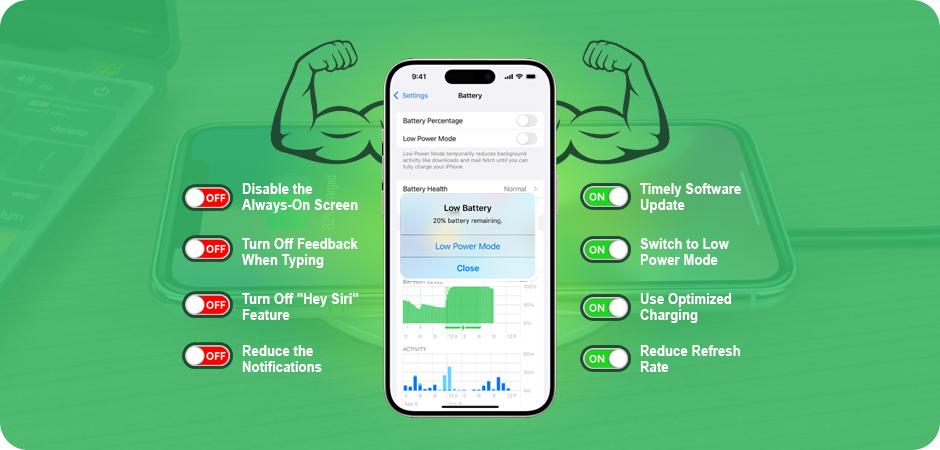
3. Update New Version
IOS has a lot of new functionalities that come over time and introduced as a new version of it. The preference is always go to with up to date new versions to avoid viruses. Even, user has the experience of trying new features and customization options. These functionalities are interesting and even more skillful to enhance unique creativity.
The upcoming updates have specific timing of 3 to 4 months. Whenever you are iPhone provides you the notification of new updates without wasting the time just go ahead and fulfill the process.
4. Off the Location
Location Services is a useful tool that locates you via GPS, Bluetooth, Wi-Fi hotspots, and cell towers. However, using it may damage your battery. Location is such an amazing feature of iPhone that can help your friends and family to be aware about your current moments and destinations. It improves the security and protection of yourself.
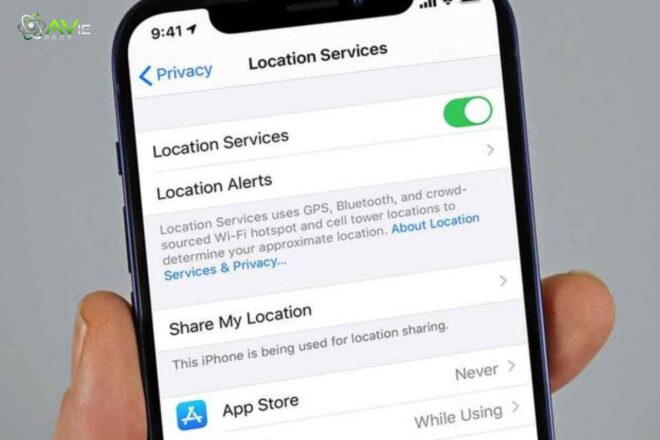
Not doubt, everyone needs to send their live location to their parents to feel safe. But turn on it constantly can drain the battery power of iOS. Use this feature when you actually needed and after that disable it from the settings. The process of enabling the location is to go to the Settings > Privacy > Location Services.
5. Avoid Smart Wakeup
These smart features are becoming so and in the latest phones. That’s really creative and unique to customize it according to your choice. But the fact as its actually battery battery-consuming process that can reduce the power of energy. To maintain long-term relationship with the iPhone battery, start disabling these kind of features.
6. Disable the Always-On Screen
The always-on display of the iPhone Pro series is one of the largest power consumers. After years of ignorance, Apple eventually included the feature. Although the company claims it would only consume 1% of your power each hour.
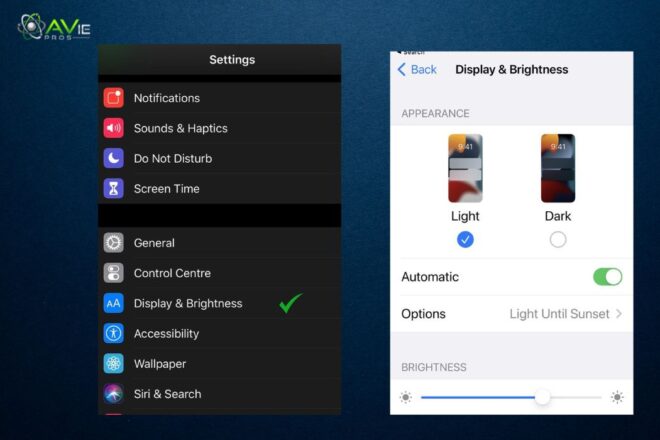
That is still over a fourth of your battery per day when you’re not using your phone. Turn the toggle off on your iPhone by going to Settings > Display & Brightness > Always On Display. It will be appreciated later.
7. Turn Off Feedback When Typing
Before it was introduced to iPhones, Android phones had this feature for years. High battery consumption results from the continuous buzzing that sounds whenever you press a key, especially if you type continuously as I do.
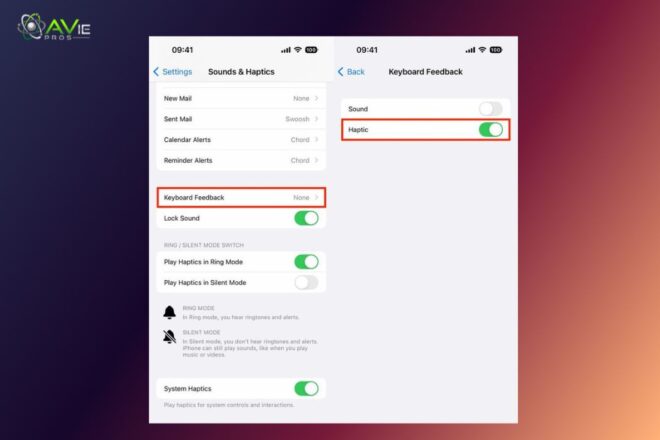
Go to Settings > Sounds & Haptics > Keyboard Feedback on your iPhone to disable the “Haptics” setting. If you live with your iPhone ringer turned on, you can also turn off sound from the keypad, which can help you protect iPhone battery life.
8. Reduce the Notifications
On an iPhone, a million things happen at once when you receive a notice. In addition to vibrating and playing a sound, your display also features an on-screen animation. You probably receive a lot of notifications every day if you have a lot of apps installed.
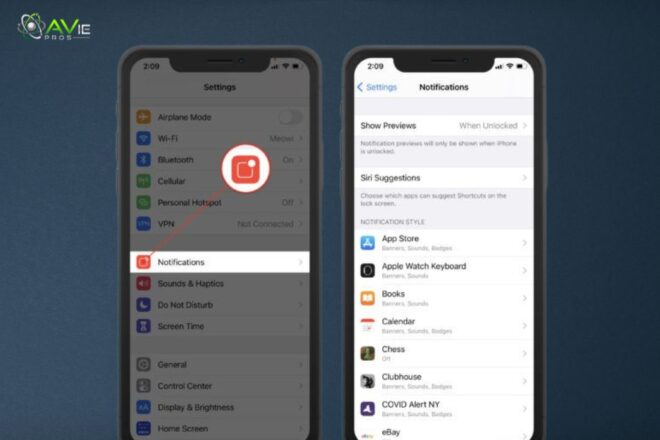
Which could cause battery loss that you were unaware was occurring. In addition to saving the battery life of iPhone, turning off some pointless activities will also prevent you from checking your phone every few minutes. Turn off all of the notifications you don’t need to maximize battery life.
9. Turn Off “Hey Siri” Feature
You probably don’t need your iPhone to be listening to the “Hey Siri” command all the time if you don’t use Siri. You may activate the assistant by long-pressing the side button on any current iPhone. This frees up battery power used for voice command detection.
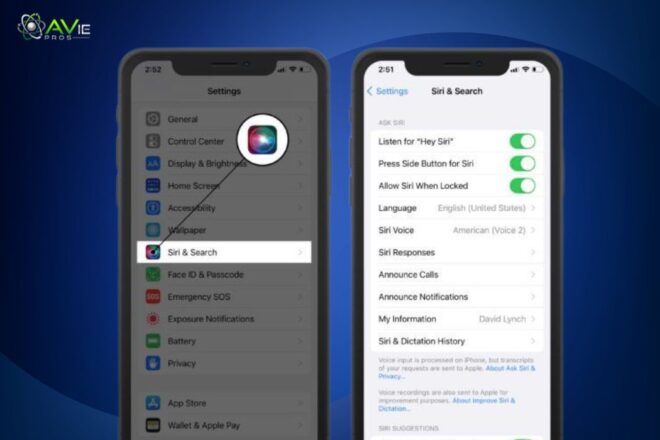
It has a sensor that always active to listen your command that you provide any time. This feature also drop the battery so quickly. Turn off this function from the iPhone settings, this way.
10. Use Focus Mode Feature
By choosing which apps are allowed to contact you, Focus Modes can reduce the quantity of messages you get, much like lowering notifications. For example, you might turn off notifications when you’re working or driving. Although you may always make your own Focus profile, Apple provides pre-made ones.
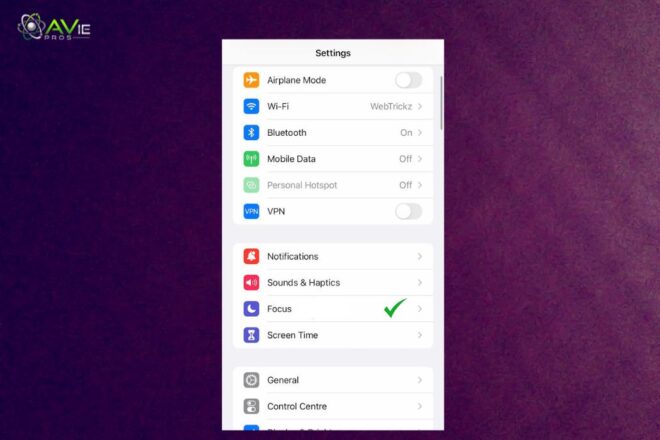
Choose a focus, like Work, by going to Settings > Focus. Next, decide which contacts and apps are allowed to notify you while you’re in a Focus. To accomplish this, click the Tap button, choose a contact or app, and press Done. Additionally, you have the option of displaying notifications on the Lock or Home Screen.
11. Turn Off Nearby AirDrop
You can quickly exchange contacts, files, and other data between two iPhones, Apple Watches, or one another with the useful tool known as AirDrop. While it’s fun to use once in a while. The feature’s ongoing search for other Apple devices to connect with will drain your power.
Although power reduction isn’t a big deal in this situation. It might be if you’re in a public setting with a lot of other phones nearby. Go to Settings > General > AirDrop and disable “Bringing Devices Together”. This will just make the nearby sharing feature in AirDrop unusable. This step also improve iPhone battery health.
12. Stop Using Live Activities
Live Activities, which launched with the iPhone 14 Pro series, allows you to view real-time data from many apps without requiring you to have the app open in full-screen mode. Among other things, the tool is excellent for following sports scores, Uber ETAs, and Instagram progress uploads.
Over time, Live Activities can quickly reduce your battery, as you might expect. Find the apps that support Live Activities in the Settings app. Toggle “Live Activities” off the list of options after pressing on them. Toggle off “Live Activities” in Settings > Face ID & Passcode to prevent them from showing on the lock screen.
13. Widgets on Lock Screen
According to the lock screen, Apple recently made it possible for users to customize it with widgets in iOS, which support information that can be quickly viewed. Even though you love widgets on the lock screen, you won’t use them if they consume your battery. To access customizing mode, turn on your iPhone and push and hold the lock screen.
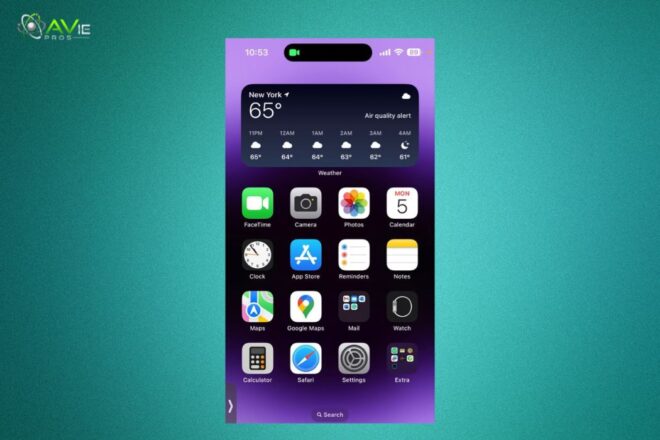
After that, select “Customize” and the lock screen itself. You can then delete any widgets that you believe are using up too much of your battery. While some apps, such as the Calendar app or your fitness rings, may eventually only use a small portion of your power, anything that requires continuous data retrieval is generally best to get rid of.
14. Reduce Refresh Rate
If you have a more recent model of iPhone Pro, you may have noticed how smooth the screen is. This is because Apple’s Pro phones have a refresh rate of 120 Hz, which improves the accuracy of everything from scrolling to animations. If you want to improve iPhone battery health throughout the day.
It is recommended to lower the speed because this consumes more power than a panel with a 60 Hz refresh rate. Go to Settings > Motion > Accessibility, then select “Limit Frame Rate.” The display speed will drop to 60Hz as a result of this modification.
15. Switch to Low Power Mode
The battery life of iPhone depends on multiple factors. You can manage this problem in an absolute amazing way. The super solution is to on the low power mode. That works like magic and reduces the battery falling issue.
Tap the battery icon after swiping down from the iPhone’s top-right corner to find out the accurate option where you can find low power mode icon. You will enter Low Power Mode when your battery status indicator turns yellow. Do the same thing to turn it off.
16. Don’t Overcharge Battery
A new battery setting on the iPhone 15 and iPhone 15 pro models keeps your device from charging past 80%, possibly increase iPhone battery life. Here’s how to activate it, Go to Settings > Battery > Health & Charging of the Battery. Charging Optimization > 80% Limit is selected.
17. Turn Off Wireless Services
Your phone has a lot of wireless technologies that operate in the background, including Bluetooth, Wi-Fi, and cellular data. When you’re out and about, the list of available networks is always changing because it’s always looking for nearby Wi-Fi connections. You can disable Bluetooth, Wi-Fi, AirDrop, and cellular data from the Control Center if you’re experiencing a true power failure.
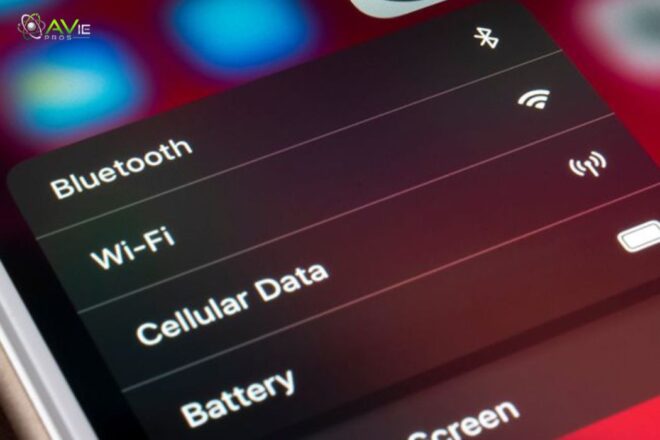
Just be sure to switch them back on when you need them most. To disable all of your phone’s cellular functions, you may also tap the Airplane Mode symbol. You can still connect to Wi-Fi, but calls and texts won’t work. The airplane icon in the upper right corner will indicate that it is engaged.
18. Look for Battery Health of iPhone
Go to Settings > Battery > Battery Health & Charging and check Maximum Capacity to see how much your phone’s battery has used. If you’re concerned about its long-term health then test first. It should ideally be at 100%, however, over time, lithium-ion batteries quickly lose capacity.
To check the battery life of iPhone, look at its peak performance capability. Try to charge your iPhone 80% and then enable low power consumption before using it. It will help you to make your battery last longer.
19. Hot and Cold Temperature
According to Apple, 62° to 72° F (16° to 22° C) is the recommended normal temperature for iPhones and other Apple devices. It is possible for temperatures above 95° F (35° C) to “permanently damage battery capacity.” If you find that your iPhone is getting hot when charging, unplug it.
Additionally, battery life may be temporarily shortened by temperatures below 32° F (0° C). By keeping it warmer, holding your iPhone in an inside pocket closer to your body is harmful. If you live in a cool climate that assist you to improve iPhone battery life.
The Final Verdict
All users frequently face battery issues in their lives, and it’s really difficult to get back to their old position. But don’t worry; there are multiple ways to extend the battery of an iPhone using simple methods and controls. The article successfully mentions all the settings with details. You can easily follow the guidelines to maintain the iPhone.
From our perspective, you don’t need to damage your phone more or play with a new one, because if you purchase an iPhone to get better battery life, then you must be wrong. How to improve the battery life of an iPhone is adaptable for you. You may increase iPhone battery life and have a more dependable experience by following our suggestions.
FAQs
Why is the battery on my iPhone dropping so fast?
It is most likely getting old, buzzing apps, or working overtime. It needs a break after a long day.
How can I see how well my battery is doing?
Go to Settings > Battery > Charging & Battery Health. It will tell you how much life it has left and how much time is still available to use apps for a healthy battery.
Do I need to constantly shut down apps?
No, your iPhone is good enough to run a lot of apps on it. Swiping through different applications all day may break it out even more so, use it.
Will an iOS upgrade resolve the issue?
Yes, it could be a solution to the fixing of problems. New version updates has the capabilities to resolve various issues.