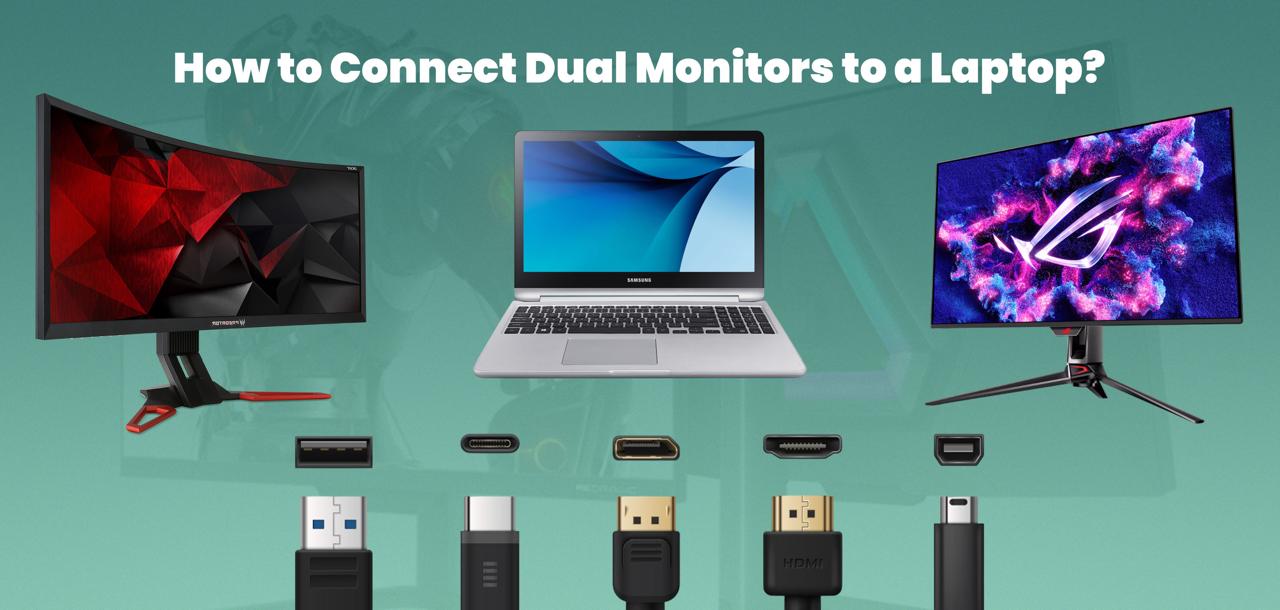
How to Connect Dual Monitors to a Laptop
We all multitask every day in the age of technology. You may have found that a single laptop screen is not enough at times. If you are a student working on schoolwork, an office worker working on many tasks, a gamer who prefers a larger screen, or a YouTuber editing vlogs. Using your laptop with two monitors might have a big impact.
Without frequently switching between tabs or applications, it enables you to perform more at once. This may seem like a complicated and advanced process to beginners. In real, it is actually rather simple once you understand the stages.
This article will show you the simplest way to connect two monitors to your laptop. The several connection methods, setup instructions, adjustments, troubleshooting, and tips to get the most out of them will all be covered. By the end of this article, you will be able to use the benefits of having two monitors on your laptop without any misunderstanding. Let’s explore it:
Part 01: Why Use Dual Monitors with a Laptop?
Understanding the benefits of multiple monitors is important before learning the steps. You may increase your workspace by connecting two displays to your laptop. For example, research material can be displayed on one screen while a document is open on the other. One monitor can play a video while the other is used for work or conversation.
For easier operations, players and video editors also use multiple displays. To put it simply, double monitors help to boost productivity and save time. Let’s check the factors:
1. Checking Laptop Compatibility
Make sure your laptop is capable of supporting double monitors before connecting them. Most of the most recent laptops feature connections that allow you to connect one or two external monitors. Look for HDMI, DisplayPort, USB-C, VGA, or Mini DisplayPort on the sides or back of your laptop. You can immediately connect two monitors if your laptop has at least two display outputs. If it only has one, you can still use adapters or ports to connect two.
2. Choosing the Right Monitors
Even though you can connect any monitor to your laptop, making the incorrect decision might have a big effect. Make sure the monitors are capable of handling the refresh rate and graphics card resolution of your laptop.
For example, Full HD monitors are ideal if your laptop can support Full HD resolution because everything will look clear and accurate. Additionally, to make the display appear more natural when switching between screens, try to use monitors of the same size.
Part 02: Methods to Connect Dual Monitors to Laptop
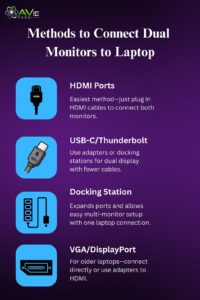
Let’s understand all the possible methods to do it. If your first one doesn’t work then you can try other methods. Let’s have a look:
Method 1: Connecting with HDMI Ports
HDMI is the most effective way to connect a display to a laptop. You can use the HDMI ports on your laptop to monitor cable connections to both displays if it has any. Since most displays have HDMI connectors, this is the easiest way for new users to get started. Your laptop will identify the two monitors after the connection is made, and you can adjust their settings.
Method 2: Using USB-C or Thunderbolt Ports
The majority of modern computers, especially slim ones, have multiple HDMI connectors. Rather, they have Thunderbolt or USB-C ports to enable video output. You can connect monitor to a laptop using USB-C to HDMI or USB-C to DisplayPort adapters if your laptop has USB-C video output.
With some docking stations, you can use a single USB-C connection to connect two monitors at once. For customers who want a more structured setup and fewer cables, this is really helpful.
Method 3: Using Docking Stations
The best option if your laptop has few ports is to have a docking station. A docking station is a little device that connects to your laptop and features multiple extra ports for internet cables, USB devices, and monitors. You may easily connect two or more monitors if you have a suitable docking station. Beginners will find it simple, as they only need to connect their laptop to the docking station once, after which they can connect their monitors to the station.
Method 4: Using VGA or DisplayPort
They may feature a VGA or DisplayPort port, but they absence of HDMI and USB-C. You can connect your monitors straight in if they have these ports as well. If not, a VGA or DisplayPort to HDMI adaptor can be used. In this manner, you can use two displays even if your laptop is a little older.
Part 03: Settings for Multiple Devices
Now, its time to complete the setting for windows and macOS. Let’s discuss:
1. Setting Up Dual Monitors in Windows
Setting up the display in your operating system is the next step. After connecting them to your laptop, simply complete the settings. Simply right-click on your desktop and choose display settings. This step is for Windows users. After clicking on the right side, you will see both displayed in a rectangular shape. You can locate the real place.
Here you can see where you place both monitors, as if you place one on the left and other on the right. Additionally, you can choose a single monitor, double display, or extend the display options. Most users go with extending the display choice because it gives you additional workspace.
2. Setting Up Dual Monitors in macOS
The procedure is also simple if you have a MacBook. Click on Displays after selecting System Preferences from the Apple Menu. Similar to Windows, you can move your monitors around when they appear here. You have the option to expand your show between two displays or mirror it.
In general, Apple laptops operate smoothly with two monitors, especially when using Thunderbolt or USB-C connectors.
3. Adjusting Display Settings
You must modify the displays’ resolution, scaling, and orientation after plugging them in. Make sure the resolution is adjusted to the suggested level when your monitors are unable to display sharp images. Reset the scale percent if one monitor looks too big or too small in comparison.

For viewing documents or coding, some people also prefer to turn their monitors upside down. You may easily make all of these changes from your operating system’s display settings.
4. Dual Monitor Setup for Laptops with Weak Graphics Cards
Some older laptops may not have powerful graphics cards. This can cause lag when connecting two monitors. To handle this, use lower resolution settings to reduce the load. You can also use lightweight tasks on one monitor and heavy tasks on the other. In some cases, external graphics cards (eGPUs) can also help improve performance for dual monitor setups. Beginners should not worry too much, as most modern laptops can manage two screens easily.
Part 04: How to Arrange Monitors on Your Desk
The physical placement of your monitor is important in your connecting process. Make sure that both monitors are at the same level to prevent any strain. Keep them side by side with an inward angle for better comfort of view.

If you don’t have much space on your desk, you can use a monitor stand or wall mounts to attach them. A well-arranged desk plays an essential role in your smooth working experience and reduces stress.
Part 05: Using Dual Monitors for Different Tasks
After you’ve done your setup, you can use both screens in multiple ways. For example, you are studying and you want to open textbooks on one monitor and can right notes on the other, so you can easily do that. Some people work in office jobs, they keep sending emails from one and can use documents on another screen.
There is a flexible edge for game lovers, also. They can play games for one minute while streaming on chatting on the second one. You can create videos with editing possible on the first one while monitoring audio on the other one. You can manage multiple tasks because it provides flexibility. So we can say that dual monitoring is useful for all who manage tasks.
Future of Dual Monitor Technology
Technology is always improving, and the way we use multiple monitors is changing, too. Many new laptops now support three or more displays with ease. Portable USB monitors are also becoming popular for people who travel and still need extra screen space.
In the future, foldable and curved screens may even replace the need for multiple monitors by offering large, flexible displays. This shows that using more than one screen is becoming a normal part of everyday computing.
Common Issues and Solutions
Beginners occasionally run into issues when trying to connect two monitors. One of them is that there is nothing visible on the second monitor. Make sure the monitor is turned on and try verifying the cable connection. When two displays duplicate the same screen instead of extending it, it presents another issue.
By going to display settings and using the expand option, this can be fixed. Update your graphics drivers if your laptop completely refuses to recognize the monitor. Sometimes you need an external adapter since your laptop’s graphics card isn’t capable of supporting two displays.
Benefits of Using Dual Monitors

Enhanced productivity is the main benefit of using two displays. It makes research and taking notes simple for students. It enables managing multiple programs and data at once simple for professionals. It makes playing and streaming more efficient for streamers and gamers. It makes space for more editing tools and previews for creative professionals. Dual monitors generally reduce stress, save time, and improve the quality of your work or play.
Tips for a Better Dual Monitor Experience
Both displays should be at eye level for optimal performance and to avoid eye strain. Secure communications require the use of high-quality cables. To avoid visual differences, if you can afford it, use two monitors of the same model or resolution. Additionally, you can adjust the color and brightness settings so that both panels look similar. Make sure your workspace is arranged so you can easily gaze at both displays without hurting your neck.
Conclusion
How to connect dual monitors to your laptop may seem difficult for beginners, but once you understand the basics, it becomes a very simple process. By checking your laptop ports, choosing the right connection method, and adjusting the display settings, you can enjoy a wider and more productive workspace. Whether you are studying, working, gaming, or creating content, dual monitors will improve your efficiency and comfort. Take your time to set them up properly, and you will never want to go back to using just one screen.
FAQs
Can all laptops support two monitors?
Not all laptops support dual monitors, but most modern laptops do. You need to check your laptop’s ports and graphics card capability to confirm.
What if my laptop has only one HDMI port?
If your laptop has only one HDMI port, you can still use a docking station or a USB-C adapter to connect the second monitor.
Do I need the same model of monitors for a dual setup?
No, you can use different models, but it is recommended to use similar resolution and size for a smoother experience.
Can I connect two monitors wirelessly?
Yes, some wireless display adapters allow you to connect monitors without cables, but they may have delays and are not always reliable for heavy work.
Why is my second monitor not detected?
Check the cables, restart your laptop, and update your graphics drivers. If the issue continues, your laptop may not support dual monitors.
Can I extend my laptop screen across two monitors?
Yes, you can extend your display so that both monitors work as one large screen instead of showing the same content.
Will dual monitors slow down my laptop?
If your laptop has a weak graphics card, dual monitors may slightly reduce performance, but most modern laptops can handle it without issues.