How to Stop Laptop from Overheating
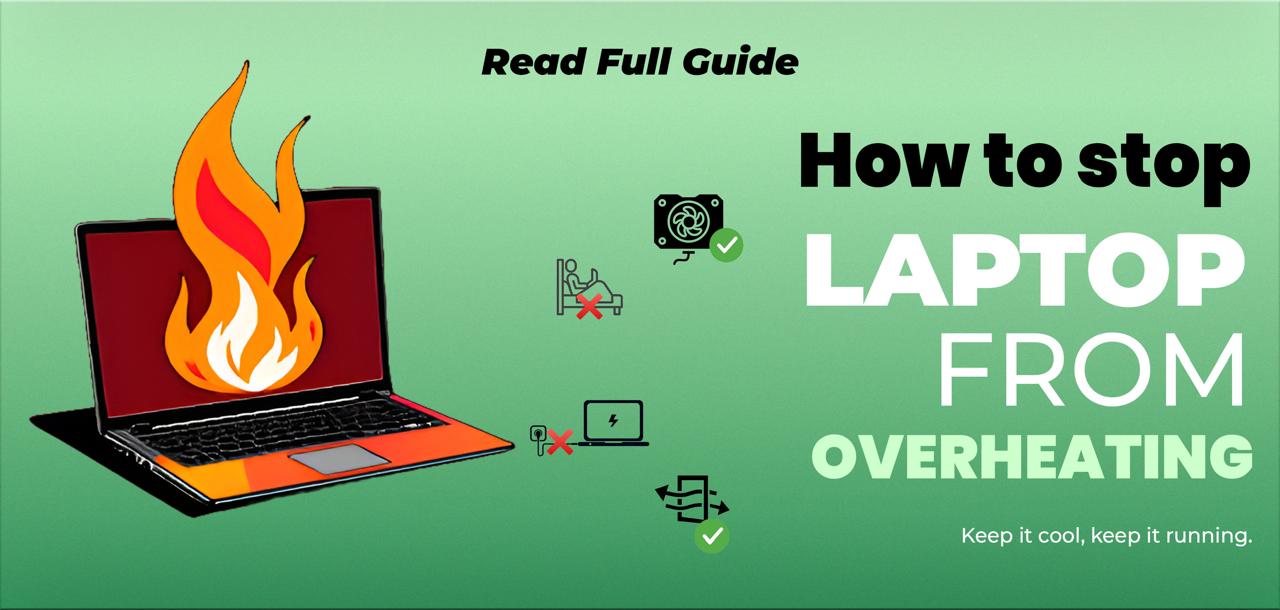
The laptop overheating system is the most common problem that everyone faces. It can slow down your device or even damage it over time. Whether you are working, doing daily tasks, gaming, or just browsing, if your laptop is overheated, this is not a good sign. In this blog guide, we are going to explore some easy steps you can take to fix the problem of how to stop laptop from overheating and keep your laptop running smoothly. Let’s get into: Laptop Overheating Fixing (In Under a Minute – No Tools Needed!) Today we’re going to show you how to avoid laptop overheating, whether you’re gaming, working, streaming, or just browsing. The best part? You don’t need any tools, special skills, or tech knowledge. This simple trick takes less than a minute and can cool down your device by over 20 degrees. Let’s get right into: Step 1: Open Power Options Find the battery icon at the bottom right of your screen (on the taskbar). Right-click on the icon. Click on “Power Options.” Step 2: Choose the Right Power Plan Most laptops are automatically set to “High Performance,” which pushes your system too hard and causes overheating. If your current plan is set to High Performance or Power Saver, switch it to Balanced instead. The Balanced plan offers better temperature control while still giving you a smooth performance. Step 3: Adjust Advanced Settings Next to the Balanced plan, click “Change plan settings.” Then click on “Change advanced power settings.” A new window will pop up. Step 4: Lower Processor Power to Cool Things Down In the list that appears, find “Processor power management.” Click the small plus (+) icon to expand it. Then expand “Maximum processor state.” You’ll see two values “On battery” and “Plugged in”. Change “On battery” to 75% or even lower (you can go as low as 50% if you’d like). If your laptop is overheating even when plugged in, lower the “Plugged in” setting too (some people set it to 50% or even 1%). Click “Apply” and then “OK.” That’s it and you’re done! Bonus Tip These changes won’t slow down your laptop for normal use like internet browsing, streaming, or even light gaming. Most modern laptops are powerful enough to run just fine at lower processor loads and you’ll be amazed at how much cooler your device feels. Other Methods of Laptop Overheating Fix at Home There are numerous ways to avoid laptop overheating and we will discuss each possible factor one by one. We will even catch what happens if the laptop overheats. Let’s get into the details: Method 01: Use a Flat, Hard Surface The most visible reason for laptops overheating is the poor airflow. If you place your laptop on a soft surface like a bed or cushion, the air vents underneath get blocked. It means that if the heat inside does not flow properly then your laptop or device can heat up quickly. Always choose to use a table or desk to keep your laptop on it. Method 02: Clean Out at the Air Vents One more reason that can block the air vent or fan area is dust. The dust and dirt particles make it the hardest for your laptop to release the heat properly. You need to clean it out after a month to avoid this problem. You can use a small brush to clean the vents. But regular cleaning can make a big difference to overcome the overheating of your laptop. Method 03: Use a Cooling Pad Cooling pads are so helpful that they can provide extra to your laptop. These stands have built-in fans that blow cool air towards the bottom of your device. These are effective and keep your laptop cool. It is the coolest purchase in an affordable solution. Everyone must have this one for Windows laptop heating solutions. Method 04: Uninstall Unnecessary Apps and Tabs If you want to maintain your laptop performance in the long run, then you need to work on unusual applications. When too many apps or tabs are running at the same time on your browser, it harms your laptop and makes it overheated. Uninstall all the apps that you don’t use and remove excessive tabs. Keeping things simple can help your laptop to perform better. Method 05: Work in a Ventilated Room This is a major factor most people don’t notice. The temperature of the room plays an important role in your laptop-sitting environment. If you are sitting directly in the sunlight or under the heat, your laptop will be overheated quickly. Don’t sit in hot environments to protect your laptop. Always choose to use your laptop in a well-ventilated or shaded space to fix the overheating problem. Method 06: Plug In During Heavy Use If you are busy with your professional or personal work on the laptop and using the laptop power. The battery will decrease quickly due to continuous usage. The mistake many people make is to plug into a charger during use. Doing this on the battery can cause it to overheat. Try to plug in your laptop when you are not on the working shift. It keeps the system running smoothly and makes it cool. Method 07: Update Drivers and System Software’s By studying the previous guide, everyone has the idea to understand that there is no complicated thing to make your laptop cool. You just need to understand the basic needs of your device. If you are doing excessive tasks and doing wrong things with your laptop, it will be overheated and will not properly work. One more thing is that outdated software and drivers are a cause. These updates can help your laptop to manage the power and the fan control better. Keeping everything up to date can make it more efficient and maintain the shelf life of your laptop. Wrapping Up Lastly, we want to say that you should read the above instructions patiently to improve the battery life of your laptop and