How to Speed up Computer? A Comprehensive Guide
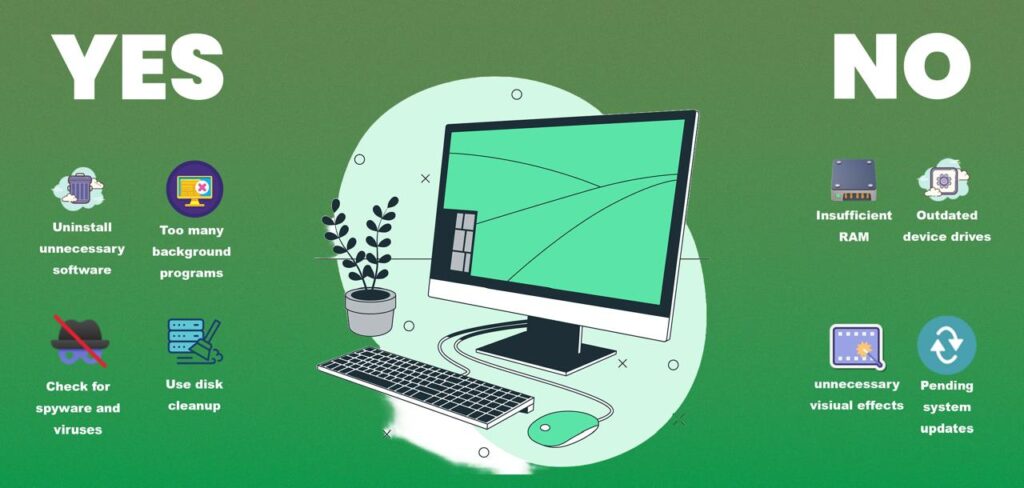
Is the speed of your computer slow? Are you trying to find out how to speed up your computer? You’re not alone. We can help you whether you want to boost your computer’s speed for work or gaming. These tested methods will help you get your computer operating like new again. While you can upgrade your computer to improve performance, there are many cheap ways how to enhance computer speed without breaking your budget. These optimization methods can greatly increase the performance of your computer and make it perform better overall. Let’s explore it: Causes of Slow Performance Before discussing possible solutions, we are going to have a look at the specific causes of slow performance. It’s important to know the facts behind happening, otherwise we cannot fix the actual issue. Now, let’s analyze what could be causing your computer to lag: Full hard drive Malware infections Insufficient RAM Too many background programs Outdated hardware Unnecessary visual effects Pending system updates Outdated device drivers Useful Methods to Increase Computer Speed Let’s look at a few simple methods how to fix a slow computer or boosting your computer’s performance. 1. Hardware Solutions to Speed up Your Computer Smart hardware upgrades are the best method for boosting PC speed. Take some of the following proven ways to how can I make my computer run faster: Memory Upgrade: One of the most affordable methods to increase computer speed, especially when multitasking, is using a RAM upgrade kit. Storage Solution: Computer performance and boot times can be greatly improved with an internal solid-state drive (SSD). Using USB 3.0, a portable external SSD can improve computer performance. Computers running Windows 10 and 11 can be improved especially well by increasing the RAM. Increasing RAM is still a reliable way of improving PC speed, however, modern operating systems consume less RAM than previous versions. Adding extra RAM to desktop computers is not only much cheaper but also a lot simpler. In around an hour, anyone with a basic knowledge of a desktop tower can easily install more RAM. If you are unaware of the process to install more RAM, you can alternatively bring your computer to a professional shop. 2. Uninstall Unnecessary Software Many people have installed some programs on their computers that they don’t use. These software can cause of using system resources. Additionally, some programs can generate unnecessary files that cause the computer to lag. People install software that includes automatic downloading of other software. These automatic downloads are unnecessary to use. So, try this method: To make disk space available, remove them from your computer. After selecting the “Start” option, go to the “All apps” menu. A list of the apps you have installed will be shown in the menu. To access the “Options” menu, right-click on the icon of the program you wish to remove. You can also go to Programs and Features by right-clicking on Start. Cortana, the Windows assistant, can also be useful because it has a search bar that can look for “Programs.” From there, you’ll see a list of the apps that eat up the most space and that you’ve used recently. You can decide which programs can be removed to help enhance system performance after looking through what is installed. 3. Limit the Unnecessary Startup Programs Similarly, you may control which programs start when your computer first boots up. System speed and boot times can be greatly enhanced by turning off unused startup apps. The Startup options will help the users to decide which apps should be enabled or disabled. This way, you can control the apps that run in the background. To disable unnecessary programs, let’s address this method: You can use Ctrl-Shift-Esc to open Task Manager. A window listing every program you have installed on your computer will show up. Additionally, it provides you with a thorough breakdown of how much RAM each program uses when your computer boots up. To make the necessary changes, simply right-click on the application and click on Disable. If you find that a software is no longer operating, which affects your PC usage, you may always adjust the settings. You can always restart your computer to keep a check on the installed apps. 4. Check for Spyware and Viruses You will almost certainly get a virus when using the internet, but the new Windows Defender program has made it easier to identify malware that could be seriously harming your computer. In addition to being easy to install, third-party solutions can be as successful in removing any viruses or malware you may have. Always use the PC Optimization Suite Program that includes performance-enhancing tools and antivirus security. This software works better for antivirus protection, but use the Windows Defender program to detect viruses and then clean them. 5. Use Disk Cleanup The hard drive of every computer contains a large quantity of useless files and programs. You can free up drive space for the programs you’ll use by using Disk Cleanup to identify which files and applications can be removed from your computer. Disk Cleanup can remove downloaded software files and other unwanted files to clear up disk space. It is quite simple to use Disk Cleanup: Type “Disk Cleanup” into the search field on the Start button, and the application will open. The Disk Cleanup application scans temporary files, installer programs, and webpages that you never used. It makes your work easier to identify. To view more alternatives, users can also choose to clean up system files. This includes deleting system files like older Windows versions. After that, it will automatically remove them to make space. Your PC’s RAM capacity affects how well Disk Cleanup works and may also make your computer operate more slowly than usual. Installing additional RAM on your device can be a smart choice if this is the case. 6. Consider a Startup SSD A Solid-State Drive (SSD) may improve speed by removing some of the load on the processor